You know that feeling when you have a quick thought ("I need to call the dentist tomorrow") and by the time you've opened your task app, tapped "New Task", picked a date from the calendar, and typed the title... the moment's gone?
We built smart task input to fix that.
Just type what you're thinking in natural language, and loggd.life figures out the rest. Dates, times, recurring schedules, all of it.
No forms. No dropdowns. No extra taps.

What Is Smart Task Input?
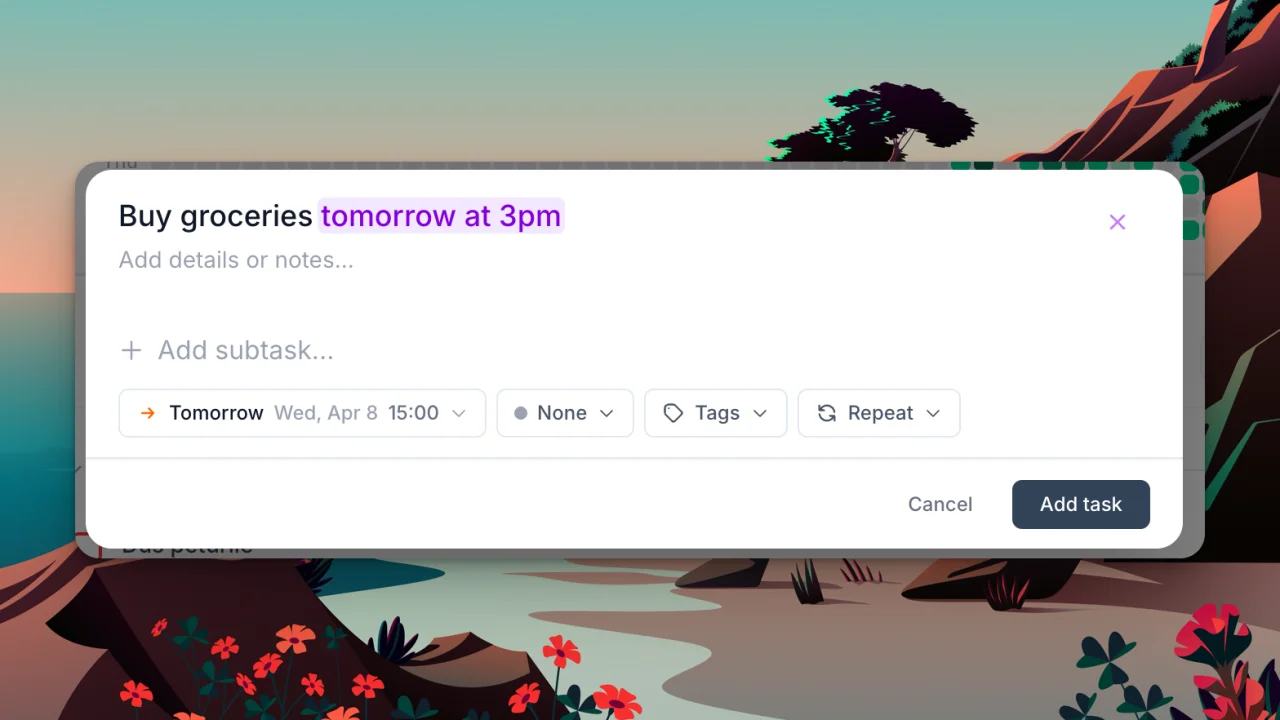
Smart task input is a natural language parser built right into loggd.life's task creator. It reads what you type in real-time and automatically pulls out dates, times, and recurring patterns from plain English.
Think of it like Todoist's Quick Add or Things 3's natural language input.
Here's the basic idea.
You type:
Call dentist tomorrow at 2pm
You get:
- Task title: Call dentist
- Scheduled for: Tomorrow
- Due time: 2:00 PM
- Status: Scheduled
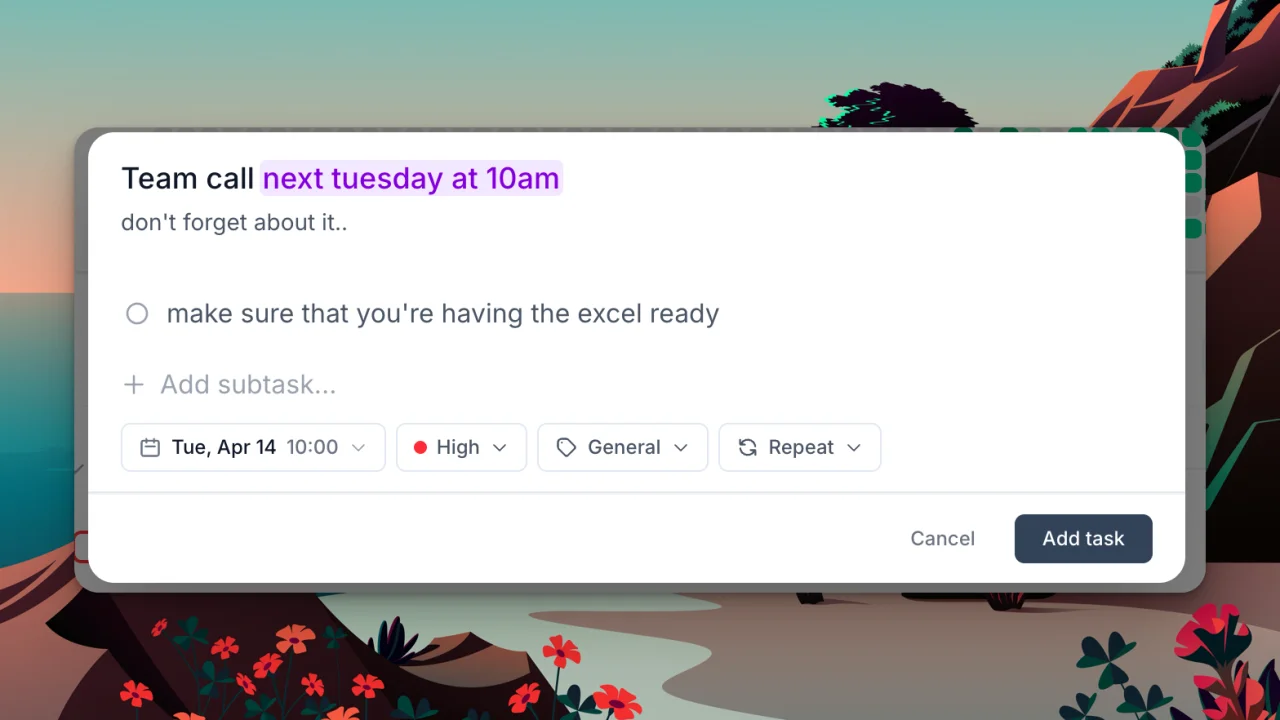
The date phrase gets highlighted in purple while you type, so you always see exactly what was detected. Don't want it? Press Escape or click the X to dismiss.
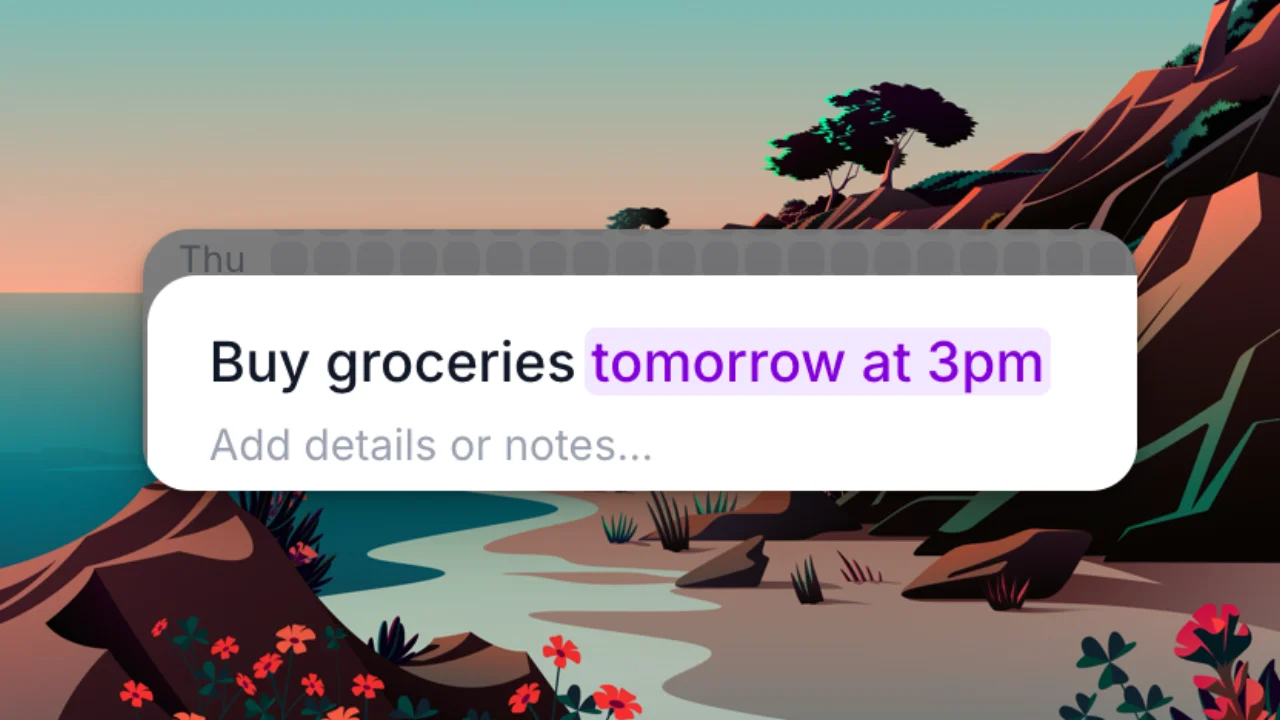
How to Use Dates
Plain English dates work exactly how you'd say them out loud.
| What you type | What happens |
|---|---|
tomorrow |
Schedules for the next day |
today |
Schedules for today |
next monday |
The coming Monday |
next week |
Start of the following week |
next month |
Start of next month |
January 15 |
That specific date |
Jan 15, 2027 |
Date with year |
01/20/2027 |
Numeric format works too |
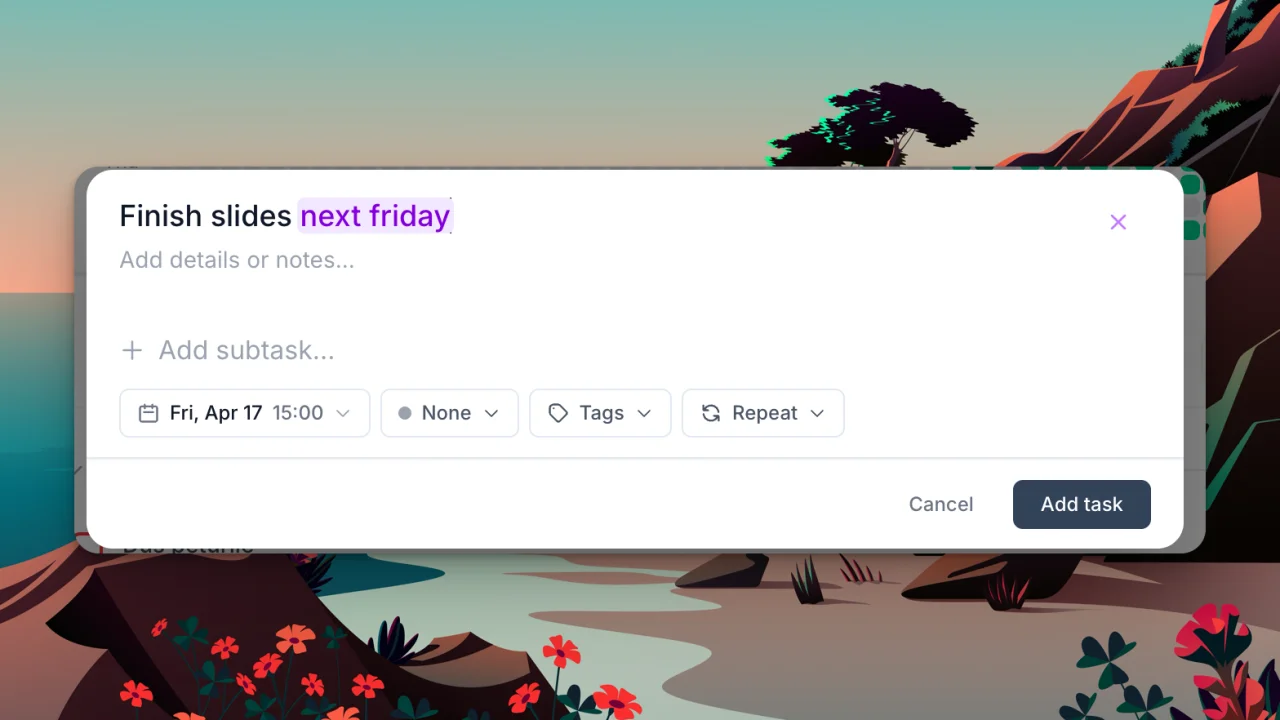
Just type your task naturally and put the date anywhere in the sentence. "Buy gift for mom next saturday" works just as well as "Next saturday buy gift for mom".
How to Use Times
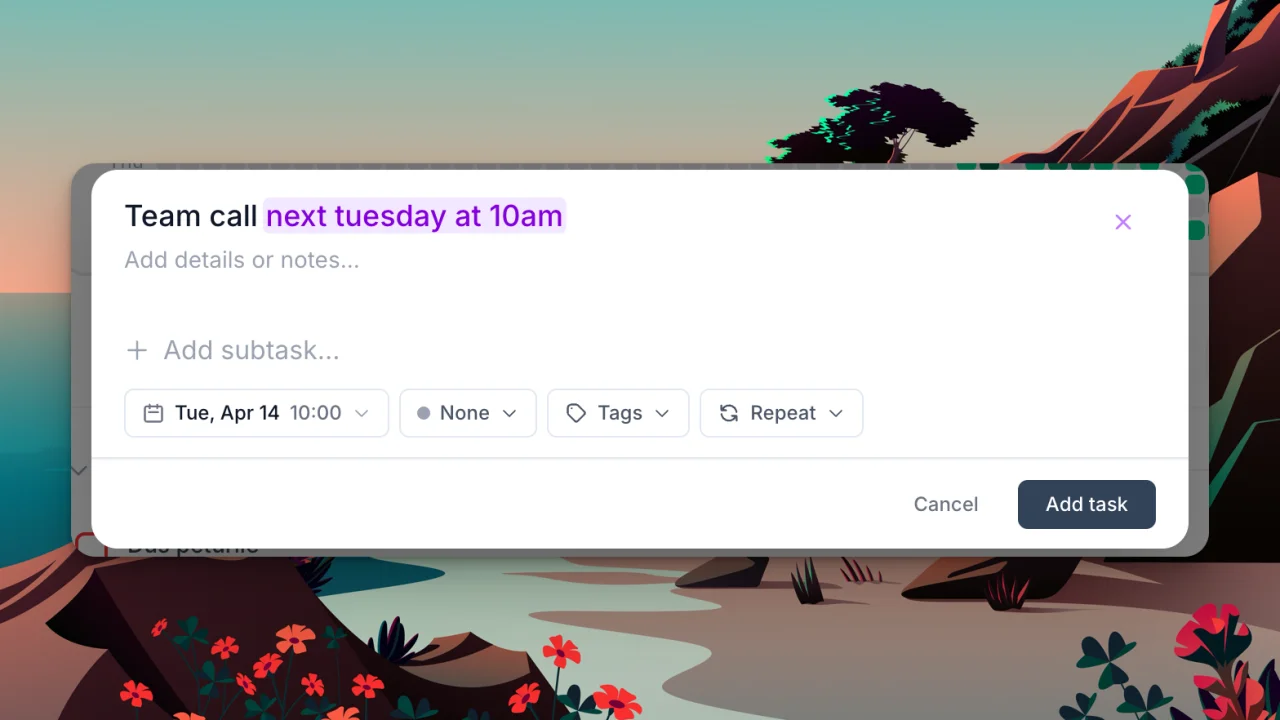
Add a time to set a due time on your task. You can use 12-hour, 24-hour, or even plain English.
| What you type | Time set |
|---|---|
at 3pm |
3:00 PM |
at 15:00 |
3:00 PM |
at noon |
12:00 PM |
morning |
9:00 AM |
afternoon |
2:00 PM |
evening |
6:00 PM |
tonight |
8:00 PM |
eod or end of day |
5:00 PM |
cob (close of business) |
5:00 PM |
You can combine dates and times in one go. Type "Send report next friday at 2pm" and both get extracted automatically.
Good to know: If you type a time that already passed today (like "at 8am" when it's already 10am), it automatically moves to tomorrow. No more accidentally scheduling tasks in the past.
How to Create Recurring Tasks
Here's where it gets really powerful.
Type a frequency word and the smart input creates a recurring task automatically. No need to open a separate recurrence panel.
| What you type | What it creates |
|---|---|
every day |
Daily |
every week |
Weekly |
every month |
Monthly |
every year |
Yearly |
every monday |
Weekly on Mondays |
daily |
Daily |
weekly |
Weekly |
monthly |
Monthly |
yearly |
Yearly |
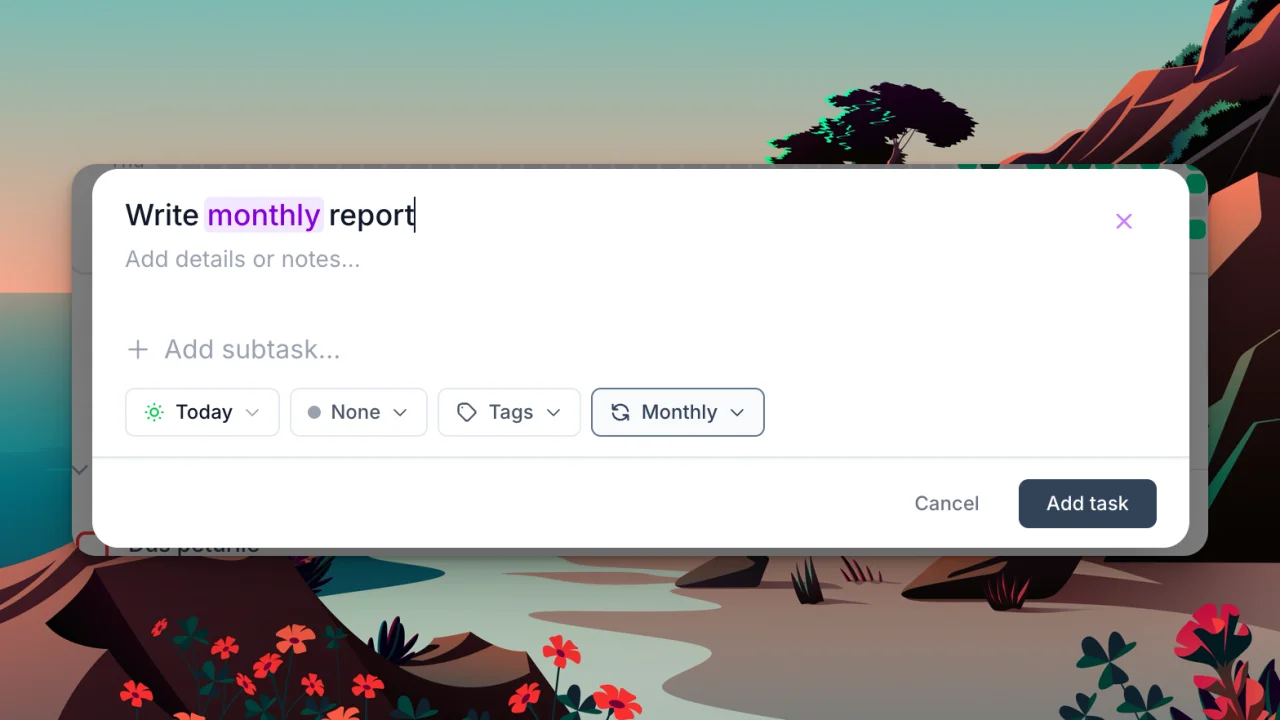
The really clever part is that it works inline with your task title. Type "Write monthly report" and the parser sees "monthly", sets the task to repeat every month, and keeps "Write monthly report" as the title. The Repeat indicator at the bottom of the form updates instantly to show the detected frequency.
More examples:
- "Call mom every week" → weekly recurring task titled "Call mom"
- "Daily standup at 9am" → daily recurring task titled "standup", with a 9am due time
- "Team sync every monday" → weekly on Mondays
- "Yearly review" → yearly recurring task
One line, fully scheduled. That's the whole point.
What It Won't Do (And Why)
The parser is intentionally smart about what not to schedule. Here's where most task apps mess up: they see the word "Monday" and immediately schedule your task, even when "Monday" isn't actually a date in your sentence.
Our parser handles four types of false positives that other apps miss.
1. Negations
Type "Meeting not on Monday" and it does not schedule for Monday. It recognizes negation words like "not", "unless", "except", "skip", and "don't". Your task stays unscheduled.
2. Past References
Type "Review what happened last Tuesday" and it won't schedule for Tuesday. It detects past-tense patterns like "last", "ago", "since", and "back in".
3. Durations (Not Deadlines)
Type "Project takes 2 weeks" and it won't schedule anything 2 weeks out. It knows "takes 2 weeks" is a duration, not a deadline. Same with "for 3 days", "spend 30 minutes", and "within a week".
4. Tricky Words
Type "I may need to call them" and it doesn't schedule for May. It knows "may" is a verb here, not a month. Same with "march" in "We need to march forward on this."
Tips and Tricks
Here are some power-user patterns that work great:
| What you type | What you get |
|---|---|
| Daily standup at 9am | Daily recurring + 9am time |
| Buy birthday gift next saturday | Next Saturday |
| Submit taxes by April 15 | Scheduled for Apr 15 |
| Call mom tomorrow morning | Tomorrow + 9am |
| Yearly review | Yearly recurring |
Quick capture from anywhere. The task input is available on every screen. Tap the + button, type your thought with a date, hit Enter. Two seconds, done.
Dismiss and override. If the parser detects something you didn't intend, press Escape or click the X. Your full text stays as the title and no date is set. You're always in control.
Combine with manual settings. Smart input handles dates, times, and recurrence. You can still manually set priority, tags, and link tasks to goals. The parser handles the tedious part (picking dates), you handle the meaningful part (organizing your life).
How It Works Under the Hood
Unlike most "AI task managers" that send your text to a server, our smart input runs entirely in your browser.
- Speed: Under 100 milliseconds from keystroke to detection
- Privacy: Your text never leaves your device
- No AI model needed: Uses pattern matching and contextual analysis
It's designed to do one specific thing extremely well: extract dates, times, and recurring patterns from natural English text.
Frequently Asked Questions
Does smart input work on mobile?
Yes! On mobile you see a chip badge below the input instead of the purple highlight overlay. Same functionality, just optimized for smaller screens.
What if the parser gets it wrong?
Press Escape or tap the X to dismiss the detected date. Your original text stays intact as the task title. You can then set a date manually if you want.
Does it work with voice input?
If your keyboard's voice-to-text produces something like "call mom tomorrow at 3pm", the parser will detect the date from the transcribed text. So yes, indirectly.
How is this different from Todoist's Quick Add?
Similar concept, different execution. Our parser runs entirely on the client side (no server round-trip needed) and is tuned to detect both one-off dates and recurring patterns from the same input.
What about past dates?
Past dates are ignored. The parser only schedules forward-looking dates. If you type "at 8am" and it's already 10am, it moves to tomorrow automatically.
Can I use it in languages other than English?
Smart input currently supports English only. We're focused on making the English parser as solid as possible first.
Try It
Create a free loggd.life account and type your first task with a date.
No forms. No calendar pickers. Just type what you're thinking and get back to your life.