The best cloud-based productivity and collaboration tools give shared work a clear home and help each person act on it. Choose a team suite for connected documents and communication, a project platform for shared deadlines, or a personal productivity app for your own daily work.
This shortlist covers five useful tool types, why each may fit, and a practical test you can run before choosing. Start with the work that needs coordination. Then decide what belongs in a shared workspace and what belongs in personal planning. A team may need complementary tools, but each responsibility should have one agreed home. That keeps a project’s current file, owner, and next action easier to locate, without requiring every part of someone’s day to be visible to coworkers.
What Makes a Productivity Tool Cloud-Based?
Cloud computing means on-demand access to shared computing resources. In everyday use, software as a service lets people use provider-run applications through browsers and other interfaces. You can open this kind of software from a supported device instead of relying on a single computer where the program and its files live.
That access can help when work moves between a desk, a home office, and a phone. Some tools also provide a shared workspace where people can find current files, coordinate tasks, or contribute to a document. Treat these as capabilities to check, not promises that every cloud app fulfills. A personal app may help one person plan across devices without giving a team a shared place to manage its work.
When you evaluate a tool, check which devices it supports, how sharing permissions work, how it handles files, and whether notifications can be managed. Look for export options, too, and test what happens if the connection drops. File storage is not the same as simultaneous editing: a workspace may hold a document without letting several people revise it together. Likewise, assigning a task to a coworker is different from setting a private reminder to do your own work.
Tools for Shared Deadlines, Decisions, and Conversations
The first three tool types organize work between people, but they solve different coordination problems. Try each with a real piece of work, then choose based on what teammates need to find, decide, and do together.
- Team Collaboration Suites
Choose a team suite when shared documents, meetings, and access need to sit together. It can be a useful home for the materials and conversations people return to throughout a project. The exact combination varies, so check the capabilities you need instead of assuming they all come in one package.
Look for shared storage, document collaboration, access controls, and a clear way to locate conversations. For a practical test, ask a teammate to find the latest version of a working document and the decision connected to it, without sending another link or explaining where to look. If they can follow the trail and understand what is current, the setup is working for that task.
Choose this category when people regularly need connected access to shared content and discussion. If the main difficulty is assigning work and tracking handoffs, test a project-management platform as well.
- Project-Management Platforms
A project-management platform fits work with named owners, deadlines, handoffs, and tasks that depend on one another. Consider publishing a customer guide. The project is more than a checklist: someone may need to gather examples before a writer drafts the guide, and a reviewer may need to approve it before the publication owner can release it.
In a trial, create that deliverable and check whether you can assign each action, add due dates, show status, represent dependencies, and filter the work to find what matters. These are selection criteria, not claims about every platform’s features. Ask a teammate to update a handoff and see whether the next owner can tell what is ready and what remains.
Choose this type when commitments, ownership, and timing are hard to keep straight in messages or personal lists. If the work is mostly a small set of shared documents and conversations, a full project structure may add more steps than you need.
- Team Communication Apps
A team communication app fits questions, quick decisions, and discussions that need shared context. Use a trial to discuss a real decision, then check whether people can organize the topic, search for the discussion later, manage notifications, and preserve the agreed outcome.
Choose this category when teammates need a shared place for conversation. When a discussion produces an action or deadline, move the agreed commitment into the task’s home. A deadline left only inside a conversation is easy to miss when someone returns to the work later.
Tools for Shared Files and Personal Follow-Through
A shared deliverable and the individual work needed to finish it are related, but they are not the same thing. Use a shared workspace for the material the team produces together, then use personal planning to decide what you will do next and when.
- Shared Document and File Workspaces
This type fits teams that exchange drafts, review work, and keep reference materials. Before choosing one, check permissions, version history, comments, real-time collaboration, and how easily people can retrieve a file later. File storage gives a team a place to keep material; simultaneous editing lets people work on the same document. Test the specific capabilities your work needs.
Try a real draft: ask one teammate to revise it and another to find the current version, leave feedback, and identify the next action. Keep the working file in one agreed location so people do not have to guess which copy is current. Choose this type when a shared document is the main work product. If the work also needs owners and deadlines, decide where those commitments will live.
- Personal Productivity Apps
A personal productivity app helps someone manage daily planning, task management, goal tracking, recurring habits, and focused work. It supports individual follow-through; it does not replace the team's shared record of assignments, deadlines, and files.
Check whether priorities and tags help you select the next action, whether recurring routines fit your schedule, and whether mobile and web access match your actual working day. A personal app can sit beside a team workspace: the shared project holds commitments, while your private plan holds the sequence you will use to work through them. For a standalone planning or reflection exercise, choose from our free browser tools, which need no signup and save privately on your device.
Should You Choose a Team Suite, Project Platform, or Personal App?
Use the work that needs coordination to choose a tool type, rather than starting with a long feature list. This table gives you a practical trial for each option and a place to put the needs it does not cover.
| Tool type | Choose it when | Useful trial | Where other needs should live |
|---|---|---|---|
| Team suite | Shared content and communication need a connected home. | Find the latest document and its related decision. | Put detailed ownership and handoffs in a project platform if the suite does not make them clear. |
| Project platform | Work depends on visible owners, deadlines, and handoffs. | Create a deliverable, assign its steps, then change a deadline. | Keep working files in an agreed document workspace and personal routines in a private plan. |
| Personal app | You need to manage individual priorities, routines, and focus. | Plan a real workday, then check it on a phone and the web. | Keep team commitments and shared files in the team's agreed workspace. |
Team size alone does not tell you how much structure you need. A pair with frequent approvals may need clearer shared ownership than a larger group doing independent work. Before comparing features, name the work that currently gets lost, delayed, or duplicated. If the problem is too many competing activities, use the 80/20 productivity analyzer to decide which work deserves attention before choosing another tool.
Run a short trial with a real deliverable. Include a handoff, a changed deadline, a file revision, and a check from mobile. See whether people can find the current owner, the latest file, and the next action without recreating the same update in several places.
For procurement, read the service terms as well as the feature list. GAO found inconsistent performance metrics and enforcement terms in agreements for selected federal cloud systems. That finding is a reason to examine terms carefully, not a claim about consumer apps.
Keep the smallest setup in which owners, current files, and next actions are easy to find.
Which Collaboration Style Does Your Work Need?
Communication, coordination, cooperation, and co-creation are a practical way to describe what people are doing together. Treat them as a guide for choosing features, not as an exhaustive or research-backed taxonomy.
| Style | Example | Features to look for |
|---|---|---|
| Communication | Exchanging information or making a decision. | Searchable conversations, clear topics, and manageable notifications. |
| Coordination | Arranging who does what and when. | Owners, deadlines, dependencies, and visible status. |
| Cooperation | Contributing separate pieces toward a shared outcome. | Shared files, review comments, and clear handoffs. |
| Co-creation | Working together on the same output. | Simultaneous editing, comments, and version history. |
A customer guide may use all four styles. The team discusses the audience, assigns sections and due dates, reviews separate drafts, and then edits the final document together. Each stage asks for a different kind of support, even though the work has one shared outcome.
Use the table to test the work you actually do. For a trial, follow one deliverable from its first discussion through its final edit, and check whether the tools make each stage clear. Choose based on the collaboration style that needs support, not on how many features appear in a list.
What Should Coworkers See, and What Should Stay Private?
Share the information coworkers need to coordinate work. Keep personal routines and reflections in a separate space unless you choose to share something relevant. A shared workspace should help people act on commitments, not expose every part of how someone gets through the day.
Give teammates the deliverable, its owner, due date, blockers, and next handoff. The deliverable shows what the work is; the owner makes responsibility clear; the due date helps others plan around it. A blocker explains what needs attention, while the next handoff tells the next person when they can act.
For example, a teammate needs to know that your draft is ready for review Thursday. They do not need your morning routine or the number of focus sessions you completed. Keep personal habit records and private check-ins in your own planning unless sharing a detail helps the team make a specific work decision.
Before inviting people to a shared workspace, use this checklist:
- Decide who can view and edit each item.
- Check who can invite others and who can export information.
- Review access when someone’s role changes.
- Agree on what each status update means, such as “in review” or “blocked.”
- For every field you track, name the work decision it helps another person make.
If a field has no clear coordination purpose, leave it out. For a personal routine you want to track separately, use the 100-day project tracker to record your own progress.
Connect Goals, Daily Tasks, and Focus Time
A useful daily workflow connects a shared commitment to your own next action. Keep the project’s owner and deadline in the team workspace, then use personal planning to decide how you will move the work forward today.
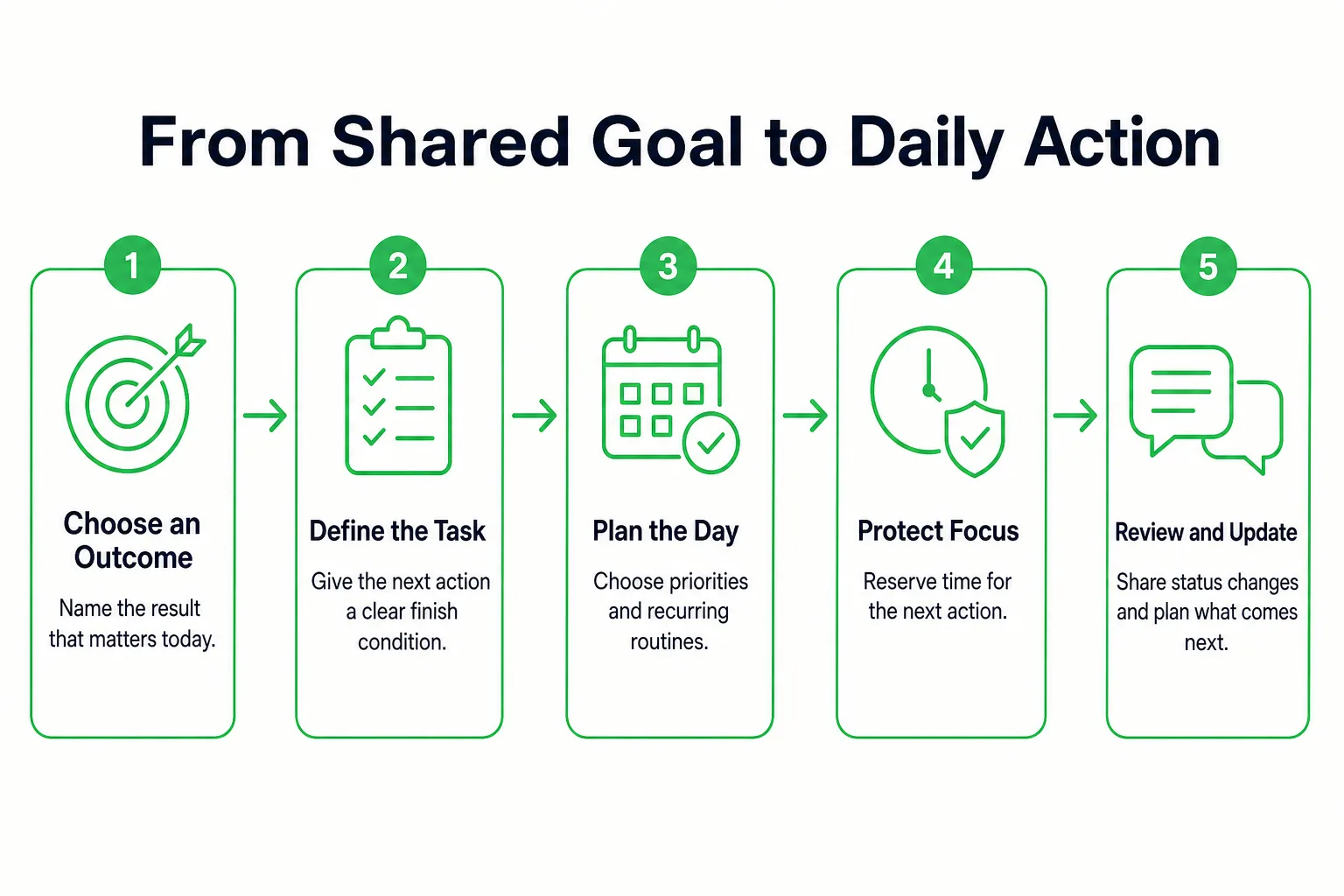
- Choose today’s outcome. Start with the result that matters most, then connect it to the broader goal. For example, if the goal is to publish a customer guide, today’s outcome might be a draft ready for review.
- Make the outcome a concrete task. Write a finish condition so you can tell when the task is done: “Send the review-ready draft to Priya,” rather than “Work on guide.”
- Choose priorities and place recurring routines around the work. Decide what comes first, then fit regular habits around the time available. Give a disrupted day a smaller fallback, such as outlining the draft before the next review.
- Reserve a focus session for the next action. Choose a stretch of work time and move unrelated notifications out of that period. Use the focus timer when you want a dedicated work session in your browser.
- Update the shared commitment, then review the day. Change the project status when the work changes, and use an end-of-day check-in to decide what carries forward. If a day goes unfinished, reassess the task, deadline, and next available work period instead of treating it as a reason to abandon the goal.
The flow is straightforward:
Outcome → task with a finish condition → priorities and routines → focus session → shared status update → end-of-day review
The personal plan guides your work. The shared record keeps the team’s commitments current.
A One-Week Setup for a Small Remote Team
Here is one way Nina, Luis, and Priya could prepare a customer guide for Friday without copying every personal task into the team workspace. They use one shared project record for owners and deadlines, one working document for the guide, and individual daily plans for execution. Where their chosen tools allow it, they keep discussion attached to the relevant work.

| Day | Shared commitment | Personal next action | Update location |
|---|---|---|---|
| Monday | Agree on the guide’s scope and set Thursday as the review deadline. | Nina outlines the guide; Luis gathers examples; Priya defines the review checklist. | Record the scope, owners, and review deadline in the shared project. Keep the outline and checklist in the working document. |
| Tuesday | Draft sections and gather the supporting materials. | Each person chooses a focused work period for their part and notes any blocker. | Add blockers and changes to the shared project. Put draft text and examples in the working document. |
| Wednesday | Respond to an incoming request by deciding which existing commitment moves before adding work. | Each person adjusts their daily plan to reflect the team’s decision. | Record the decision and any changed owner or deadline in the shared project. |
| Thursday | Review the shared draft, resolve comments, and confirm who will publish it. | Nina checks the outline against the draft; Luis verifies examples; Priya reviews against her checklist. | Resolve feedback in the working document and record the publication owner in the shared project. |
| Friday | Publish the guide, close completed commitments, and decide whether unfinished actions still matter. | The publication owner completes the release; each person checks their remaining tasks. | Mark the project commitments complete or revise the next action and deadline. |
Their personal routines can stay visible in individual planning without being copied into the project. To turn your part of the week’s work into a bounded daily list, use the 1-3-5 daily task planner.
The setup has three clear homes: the shared project record for commitments, the working document for the live guide, and personal plans for each person’s work sequence. Keep the live draft in one agreed place, stop repeating status updates across channels, and share changes rather than duplicating personal task lists. When Wednesday’s request arrives, decide what moves before anyone adds another commitment. That keeps the deadline and handoff visible without making every individual action a team update.
Connect Your Daily Work With Loggd
Keep team assignments and shared documents in the places your team has agreed on. Use Loggd for the personal side: connecting goals to the tasks, habits, and focus time that help you follow through.
Start by choosing a goal, then add tasks that move it forward. Tasks and focus sessions can connect with goals, so you can keep the reason for your work alongside the next action. Use priorities and tags to sort your list, then choose one task to work on with the focus timer.
Add recurring routines with flexible habit schedules, and use the daily check-in to review how the day went. A routine can support a goal without becoming another team commitment. If you miss a day, look at what you planned and choose the next workable step.
Checking off a day fills a grid of your last 365 days, giving you a view of your year at a glance. Points, levels, streaks, and badges are optional motivation within that workflow. Treat them as a way to make progress visible, not as a measure of what your teammates should see.
Loggd is available on iPhone, Android, and the web. It is free, with no credit card needed. To begin, choose one goal, add the next task that supports it, and schedule one recurring habit that helps you make time for that work.
Questions Before You Move Your Work
Can cloud-based productivity tools work without an internet connection?
It depends on the tool and what you need to do. Check whether it supports offline access, which work remains available, and how changes are handled when you reconnect. If you cannot confirm those details, plan to use the tool when you have a connection.
How should we move existing tasks and files into a new shared workspace?
First, agree on which tasks and files are still active, who owns them, and where each live document will belong. Move a small, current piece of work as a trial, then check that owners, deadlines, comments, permissions, and links remain clear. Once the new setup works for that example, move the remaining active work and leave a note pointing people to its new home.
What should we check before uploading client files to a cloud tool?
Review the tool’s service terms and security information, and confirm that your organization permits the file to be stored there. Check who can view, edit, invite others, or export it, and limit access to the people who need it. If the client or your organization sets specific handling rules, follow those before uploading.
Sources
- cloud computing - Glossary
- Software as a Service (SaaS) - Glossary
- Cybersecurity: Selected Agencies Need to Better Protect Cloud Data