The best productivity apps for Android are the ones that cover your daily work without giving you another system to maintain. If you want habits, tasks, goals, and focus time together, start with Loggd, which is free on Android.
A focused task list, a flexible workspace, and an all-in-one daily tracker solve different problems. The right choice depends on what you need to capture, repeat, finish, and review. Below is a practical shortlist, followed by a way to choose and set up your routine. The comparisons describe supported uses; check free limits and device behavior before committing.
Shortlist Android Apps by the Work You Need Done
Choose the smallest setup that covers the work you actually do. A dedicated task list may be enough for errands and deadlines, while habits or focus sessions may call for a different tool. These apps offer distinct starting points rather than one universal winner.
| App | Best Starting Point | Supported Capabilities |
|---|---|---|
| Loggd | A combined personal daily workflow | Habits, tasks, goals, a focus timer, and a daily check-in, with free Android access. |
| Google Tasks | A straightforward task list | A free, minimalist task manager with cross-device syncing and connections to Google Workspace apps. |
| TickTick | Tasks alongside calendar planning and habits | Android to-do lists with device syncing, calendar integration, and habit goals. |
| Notion | Notes and customizable project pages | Note-taking, project management, and collaboration in customizable pages. Its Android app supports schedules, calendars, and to-do lists. |
| Trello | Work that benefits from task cards | Its Android app supports cards with checklists, labels, due dates, and comments. |
| RescueTime | Focus sessions with distraction blocking | Available for Android, with website blocking during designated focus sessions. |
| Loop Habit Tracker | Dedicated habit tracking | An ad-free Android habit tracker with charts and statistics. |
| Finch | Small daily actions with a virtual-pet reward | On Android, it turns daily tasks into virtual-pet care and supports small-step goals. |
Start with the tool that matches the job. A task list suits finite actions you need to finish. A habit tracker suits behaviors you want to repeat. A workspace can hold notes and shared project context, while focus support can help when distractions interrupt planned work.
An app’s presence here does not establish that every listed capability is included free. Check the terms and limits that apply to the features you plan to use. If you only need habit tracking, compare free habit-tracker options before choosing a larger setup.
Choose a Few Habits, a Weekly Plan, or Both
You can start with a few habits, a weekly task plan, or both. Pick the smallest arrangement that helps with the problem you have now.
For a few habits, choose two repeatable behaviors: read after lunch on weekdays, and prepare tomorrow’s bag after dinner on Sunday through Thursday. Set the days each one belongs on instead of assuming every habit has to happen daily.
For a weekly plan, capture one-off tasks and assign priorities so the most important work is clear. Put time-sensitive work on the calendar you already use. A tag describes context, such as “home” or “study”; a priority identifies what deserves your attention first.
For a combined setup, keep repeatable behavior separate from work that has a finish condition. Studying after breakfast is a habit. Submitting a course assignment is a task. Both can support the same goal without appearing as duplicate actions.
If repeated actions are slipping, begin with habits. If obligations are being forgotten, begin with tasks. If both problems show up, connect them under one goal. A useful setup names the behavior, leaves room for missed days, and fits an ordinary week. On a busy day, study for five minutes instead of 15, then resume the full session at the next planned opportunity.
If you are unsure which structure fits, use the productivity style quiz to think through how you prefer to organize work before adding more structure.
Check What the Free Version Actually Lets You Do
A free download, a free trial, and ongoing free access are different offers. Before building your routine in an app, check what you can keep using without paying and what happens when you reach a limit.
Use this checklist with the work you actually plan to track:
- Create the habits and tasks you need.
- Set a repeating schedule for a habit or recurring task.
- Assign a priority to a task.
- Start a focus session.
- View past activity.
- Open the same account on another device.
- Inspect any upgrade prompts that appear.
- Check whether the app asks for payment details.
Treat app availability and cross-platform sync as separate questions. An app may have Android, iPhone, and web versions, but that alone does not tell you which records sync or how quickly changes appear. Check what happens to the specific habits, tasks, and history you expect to use across devices.
Look for limits on active habits, tasks, history, reminders, and connected devices. Don’t assume installation is free means every capability is included, or that the app lets you keep tracking without a limit.
Test a representative day before moving in a full backlog. Add a task due today, a habit scheduled for selected days, and an action attached to a goal. Try the features you need with those records, then decide whether the app supports the routine you intend to maintain. Keep it only if its ongoing free access covers that routine. If a needed capability prompts an upgrade, make that decision before moving more records.
Connect One Goal to Today's Actions
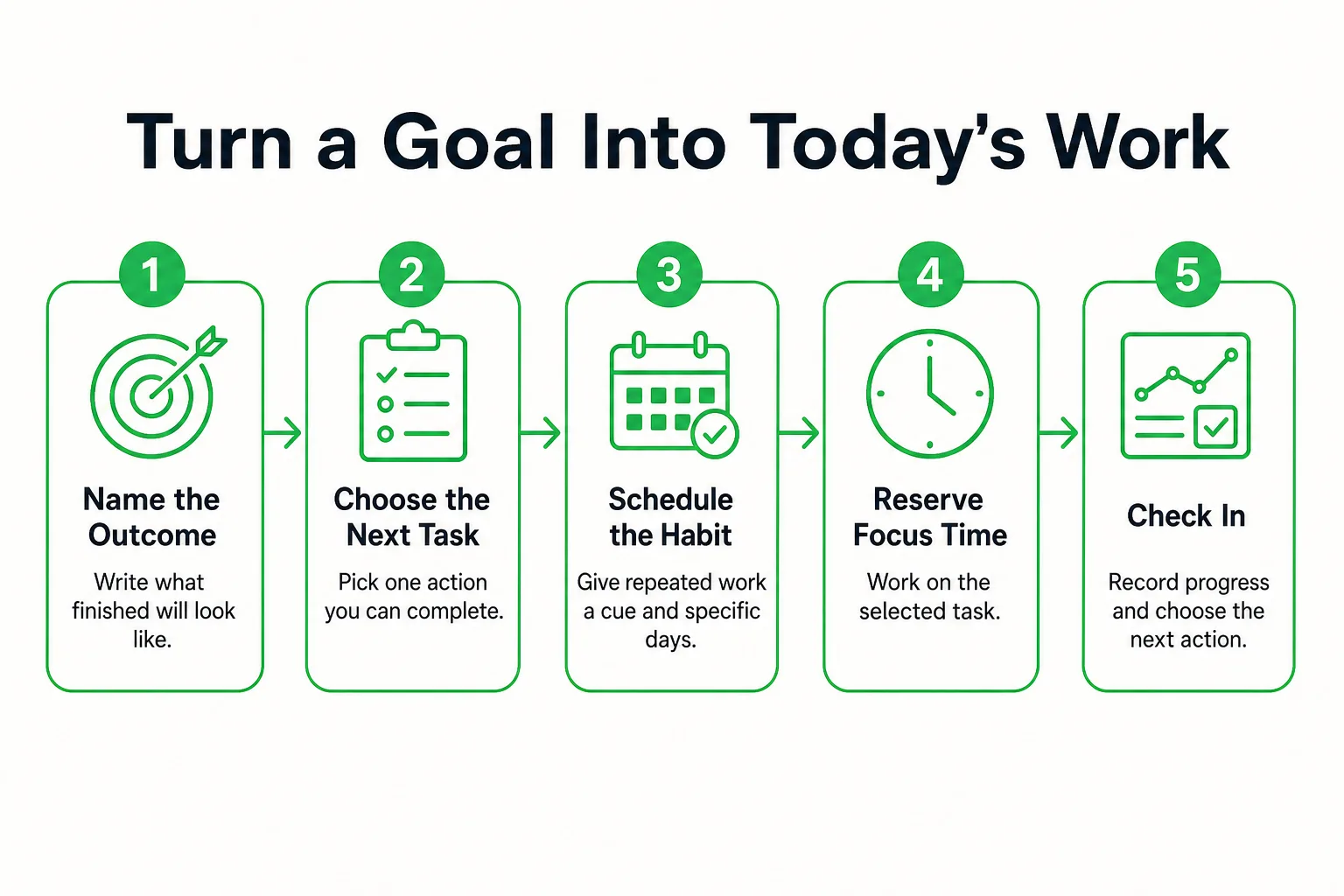
Use one goal to connect the outcome you want with the actions that move it forward. For example, Jordan wants to finish an online course by June 30. The date and study schedule below are planning choices, not requirements.
-
Write the outcome and finish condition. Jordan’s goal is to finish the course by June 30. The course counts as finished when the required lessons and final assignment are submitted. That condition makes it clear what the goal means in practice.
-
Add the next finite task. Jordan creates a task to complete the next lesson’s practice exercise and gives it a priority. A context tag such as “study” can help find the task later, but Jordan uses it only if that makes the list easier to navigate.
-
Set a repeated study behavior. Jordan plans to study for 15 minutes after breakfast on Monday, Wednesday, and Friday. Breakfast is the cue, and the selected days make the schedule specific without turning the habit into a daily promise.
-
Reserve time for the task. Jordan starts a 15-minute focus session for the practice exercise. If the chosen app supports the relationship, Jordan connects the task and session to the course goal. Otherwise, Jordan keeps the goal’s name beside the action so the connection is easy to see.
-
Close the day with a next action. Jordan records what was completed and chooses the next task. On a busy day, that might mean doing a shorter version of the study habit, then returning to the planned schedule at its next opportunity. If breakfast is too unpredictable to act as a cue, use the morning routine builder to choose a more dependable place for the study session.
Each record has a distinct job. The goal gives direction, the task describes a finishable action, the habit names a behavior to repeat, and the timer marks time reserved for work. One study session may appear in more than one view, but that does not make it several separate achievements. Record the different parts of the same work without counting them twice.
Test Your Calendar, Focus Timer, and Offline Access
Run a short trial after setting up your first habits and tasks. These checks show how the app behaves on your device, rather than what a feature label might lead you to expect.

-
Check calendar use. Enter one appointment and one flexible task. See whether the app can display or connect to the calendar you use. If keeping fixed appointments in that calendar is clearer, leave them there and use the task list for flexible work.
-
Check repeating actions. Set up one recurring task and one habit schedule. Look at the next scheduled occurrence, then complete today’s action and confirm the result matches what you expected. A recurring task and a habit can serve different purposes, so check each one separately.
-
Test a focus session. Start a session, lock your phone, and return to it. Notice what happened. Background behavior, notifications, and distraction blocking may not work the same way on every device. If you want to try a timed work block before choosing another app, use the browser stopwatch.
-
Try airplane mode. Open the app and use a disposable task to test whether you can add and edit while offline. Reconnect, then check what happened to the task before relying on the app for work you need to access offline.
-
Review access and controls. Check the app’s permissions, account requirements, privacy information, and any available export or deletion controls. Find out whether records are stored locally or accessed through an account. Neither arrangement is automatically safer; decide based on the information and controls available to you.
A successful trial tells you what worked on that device during that test. It does not establish how every device will behave, or what will happen in a different setup. Use the result to decide what you can rely on.
Read Long-Term Progress Without Chasing Checkmarks
Review your records by asking three separate questions: Did the planned behavior happen? Did important work move forward? Does the routine fit your week? Check habit entries for the first answer, completed tasks and goal milestones for the second, and your schedule for the third. A full activity record can show that you showed up, but it cannot tell you by itself whether the work reached its finish condition.
A streak records consecutive completions. Points, levels, and badges are game feedback when an app provides them. Treat them as a way to notice recorded activity, not as proof of learning, completed work, or lasting behavior change.
A year-long activity grid is useful for spotting stretches of activity, gaps, and changes in consistency. If you see a gap, look at the tasks or habits behind it before changing your plan. A pattern is a prompt to investigate, not a verdict on your effort.
For example, Jordan records a study session but still has to submit the course assignment. Checking the course milestone keeps a filled activity view from standing in for the actual finish condition. During a brief weekly review, Jordan can inspect completed work, identify a study session that kept getting missed, adjust its cue or size, and choose the next task connected to the course goal.
If you miss a planned day, record what happened without backfilling work you did not do. Resume at the next scheduled opportunity. If the same conflict keeps returning, change the schedule so it fits the week you actually have. Leaderboards are optional; if comparing records pulls your attention away from the task, keep your focus on your own progress.
For a goal with a fixed finish date, the goal countdown timer can show how much time remains while your activity record shows what you have done.
Set Up Your Android Productivity Routine With Loggd
Loggd is a fit if you want habits, tasks, goals, and focus time in one app. It is free on Android, iPhone, and the web, with no credit card needed. Those are available platforms; check the app on the devices you use rather than assuming how records sync between them.
You can set up the online-course example without building a large system:
- Add the goal: finish the course by June 30. Define the finish condition as completing the required lessons and submitting the final assignment.
- Create the next course task, such as completing the next lesson’s practice exercise. Give it a priority and add a tag such as “study” if that will help you find it later.
- Set up the study habit for 15 minutes after breakfast on Monday, Wednesday, and Friday. Choose the schedule that fits your week.
- Select the course task and use the focus timer for a work session. Loggd connects tasks and focus sessions with goals, keeping the work tied to the course outcome.
- Use the daily check-in to review what happened and choose what deserves attention next. If you need to clarify what you want from the course before adding tasks, vision exercises are an optional place to start.
Keep the setup as small as your routine requires. If you want to track only a few habits, start there. If you need to manage obligations as well, use the task list and habit schedules to plan the week in the same app. A broader setup is an option, not a requirement.
Loggd adds game feedback to finished work: it earns points and supports progress through 100 levels, along with streaks, badges, and a leaderboard. Each day you check off fills a square in a grid of your last 365 days. Read the grid for patterns, then inspect the tasks and habits behind those patterns. The record is most useful when you connect it to the work you meant to do.
For an occasional planning exercise outside your daily records, browse our free browser tools, which need no signup and save privately on your device.
Questions About Choosing Android Productivity Apps
Which Android productivity app is best for students?
Start with the work you need to manage: assignments, study habits, notes, or focus sessions. A task list can organize deadlines, while a workspace can hold notes and project context; choose the smallest setup that covers your course routine. If you want tasks, habits, goals, and focus time together, Loggd is one option to consider.
How do I move from several productivity apps without losing my old records?
Keep the old apps and records available while you list what you actually use, such as current tasks, recurring habits, and goal milestones. Move active items first, then check that their dates and details are correct in the new setup before relying on it. Keep an archive of older records if you may want to refer to them; check each app’s available export or deletion controls before removing anything.
Can I use a Pomodoro timer instead of a standard focus timer?
Yes. A Pomodoro-style timer is one way to divide work into timed focus periods and breaks. Try the timing pattern that helps you start and return to work, and check whether your chosen app connects those sessions to tasks or goals if that matters to your routine.
Sources
- Apps for Academic Success | Academic Resources
- Time Management Apps
- Apps for Managing Time & Study
- 15 Best Productivity-Boosting Apps for Professionals
- Tech Tools for Organization, Focus, and Time Management