
Office productivity tools help you create documents, organize tasks, communicate with coworkers, and protect time for focused work. The right setup gives each part of your work a clear home without making you update the same task in several places.
This guide covers the main tool categories, familiar examples to evaluate, and practical ways to decide what belongs in your setup. It does not declare one app best for every office. Start with the systems your workplace requires, fill a specific gap next, then connect your personal planning. You’ll finish with a daily setup you can try and a 30-day check to see whether your tools are helping.
Choose Tools for Documents, Tasks, and Teamwork
Tool categories can overlap, but each piece of work still needs a clear home. Start with what your workplace already uses, then add something only when it solves a real gap.
1. An Office Suite for Deliverables
An office suite gives you the basics for producing and storing work: documents, spreadsheets, presentations, and files. Microsoft 365 and Google Workspace are two options to evaluate. Start with the suite your employer provides, since coworkers may already use it to share and edit deliverables.
Include an office suite when you need to create or collaborate on those materials. If your workplace already has a suitable suite, use it rather than adding another place for documents. Before paying for anything, check current access, storage, guest permissions, administration, and whether you can export your files in a usable format.
2. A Task Manager for Next Actions
A task manager holds the next actions you need to complete. A useful entry says what to do and, where relevant, when it is due: “Check the vendor totals before Thursday’s budget meeting.” Add priorities when they help you decide what comes first, and due dates when a real commitment depends on them.
Separate one-off tasks from recurring tasks. A one-off task happens once, such as revising a presentation. A recurring task returns on a schedule, such as sending a weekly status update. Include a task manager when actions are getting lost among messages or notes. If the workplace task system already keeps ownership, priorities, and deadlines clear, use that instead of maintaining a second personal list of the same work.
3. A Project Board for Shared Work
Project management tools help a team see shared ownership, dependencies, and handoffs. A dependency means one piece of work must happen before another can move forward. A project board can show who owns each step, what is waiting, and what needs attention next. Trello and Asana are examples to evaluate for this kind of shared work.
Include a project board when the team needs a common view of status or has work that depends on several people. Keep shared project status in the team’s agreed system. Rebuilding the same status in a personal task list creates another place to maintain and check. If an existing workplace tool already covers the handoffs, keep using it.
4. Communication Tools for Decisions
Communication tools help coworkers ask questions, resolve issues, and agree on what happens next. Microsoft Teams and Slack are recognizable options to evaluate, but your employer’s choice should come first.
Use a message for a short exchange that does not need a live discussion. Meet when people need to work through a complex decision together. Put a task comment on the task when the information changes its owner, deadline, or next step. Record the resulting decision where the team expects to find it, such as the project record or meeting notes. Include a dedicated communication tool when coworkers need a shared channel for work; if the workplace’s existing tool serves that purpose, adding another can split the conversation.
5. A Shared Home for Notes
A shared place for notes and documentation keeps meeting notes, procedures, and reference material findable. OneNote is an example to evaluate. Include a shared notes tool when coworkers need to refer to the same instructions or meeting record. If an existing office suite already provides a clear, accessible place for those materials, use it.
Keep the note separate from the action it produces. A note might record that the team agreed to compare two vendors. The task should say who will compare them and by when. Before adding a tool, check whether the people who need the notes can access them, and whether your workplace can administer and export the content.
Use Timers to Answer Different Work Questions
Timers can help you decide what to do now or understand where your time went. A focus timer sets a work interval; time tracking records time spent on activities or projects. They answer different questions, so you may need one, both, or neither.

6. A Focus Timer for Starting Work
A focus timer can give a task a defined starting point. A Pomodoro timer is one interval-based option. Try this routine: choose one deliverable, close unrelated tabs, work for 25 minutes, then take a short break. Adjust the interval to fit the task and the meetings around it. If a visible work interval helps you begin, try the free focus timer for your next task.
Set up your workstation before starting. OSHA says appropriate monitor placement can help prevent fatigue, eye strain, and neck and back pain. Make the screen comfortable to use, then start the interval.
7. Time Tracking for Understanding Work
Time tracking can help with billable work, estimating how long future tasks may take, or simply observing where your work time goes. Check your employer’s requirements before choosing a tracker, especially if you are recording time for clients or reporting work hours. For an occasional task estimate, use the browser stopwatch and record the result beside the task.
You can also test batching email if your response expectations allow it. Treat it as an experiment in your own workflow: one study found that the effect of email batching on emotional exhaustion had worn off after two weeks. A schedule alone may not keep helping, so notice whether it fits the work and expectations you actually have.
Automate Repeated Steps and Review AI Output
A repeated step should be clear before you automate it. Otherwise, automation can make a confusing handoff happen faster without fixing it.
8. Automation for Predictable Handoffs
A useful workflow might start when someone submits a request. The request creates a task, assigns an owner, and alerts the appropriate team channel. Before adding another service, check whether the workplace tools you already use can handle those steps.
Test the workflow with a sample request. Check that it creates one task rather than duplicates, assigns the right owner, and sends the alert to the right place. Decide who will notice and fix a failure. Verify permissions and how sensitive information is handled before using real requests. Adopt automation when the handoff is stable and someone is responsible for maintaining it.
9. AI Assistance for Reviewable Drafts
AI tools can help restructure a draft, outline a memo, or prepare questions from approved material. Keep a person responsible for checking facts and tone, and do not submit confidential content unless your workplace permits it.
An MIT-reported experiment used occupation-specific writing tasks with 453 college-educated professionals. In that experiment, access to ChatGPT reduced task-completion time by 40% and increased independently evaluated quality by 18%. Those results apply to the writing tasks in the experiment, not to every kind of office work.
Judge a tool by the work it helps you finish and the quality you can verify. Use AI when you can check the output before it reaches a coworker or client.
Choose One App or a Small Stack for Your Office
Your personal organization and your workplace’s shared systems solve different problems. Choose tools that let each piece of work move cleanly between them.
10. Choose Around Your Work Setting
Working from home describes where you work; solo or team work describes how much coordination you need. Combine the relevant rows below. For context, remote-access and collaboration features matter to many office-tool buyers, so it is worth checking remote access and permissions when evaluating tools. That figure does not show that one setup is better than another.
| Work setting | Essential shared capabilities | What one personal app can handle | When a small stack is justified |
|---|---|---|---|
| Solo work | Access to your own files and schedule | Tasks, priorities, focus sessions, and personal notes | Add a specialized tool if a recurring need, such as detailed time records, is not covered |
| Remote employee | Reliable access to workplace files, messages, and assignments | Personal next actions, routines, and focus blocks | Use the employer’s shared tools plus a personal planner when the two have distinct roles |
| Shared office team | Team ownership, handoffs, shared files, and decisions | Your own tasks and reminders | Use separate tools when the team needs shared project status or communication that a personal app cannot provide |
| Home-based client business | Client access, clear ownership, file sharing, and work records | Personal planning and follow-up | Add tools for client collaboration, approvals, or reporting when those needs are real |
Before choosing, check cross-platform access, data export, accessibility, employer approval, notifications, and calendar integration. Treat integrations as features to verify for the specific tools you are considering. Shared administration, approvals, reporting, or client access may justify evaluating paid options; check current access, guest permissions, storage, administration, and export needs before paying.
11. Check the Handoffs Before You Commit
Run one request through the setup. Can you capture it, choose its owner, find the next action, locate the supporting file, and see the deadline? Note every place where someone must enter the same information twice. A duplicate entry is a sign to change the handoff, not add another reminder.
If choosing between reminders, lists, and time blocks is the sticking point, use the productivity style quiz to clarify how you prefer to organize work.
Try the 3-3-3 Rule on a Normal Office Day
The 3-3-3 rule is a daily planning pattern for organizing demanding work, shorter tasks, and maintenance activities.
12. Budget Three Kinds of Work
Three hours of focused work is not three tasks, and the rule does not mean nine equal blocks. Choose one substantial deliverable, then fit shorter actions and routine upkeep around it.
13. Fit the Pattern Around Your Calendar
Here is a complete example for Jordan’s 9 a.m. to 5 p.m. office day:
| Time | Work and output |
|---|---|
| 9 to 10:30 | Proposal work: confirm the recommendation and draft the opening |
| 10:30 to 10:45 | Break |
| 10:45 to 12:15 | Proposal work: complete the main draft |
| 12:15 to 12:45 | Lunch |
| 12:45 to 1:10 | Approve a vendor invoice |
| 1:10 to 1:35 | Revise a slide |
| 1:35 to 2 | Send a customer follow-up |
| 2 to 2:30 | Meeting |
| 2:30 to 2:40 | Process email |
| 2:40 to 2:50 | File meeting notes |
| 2:50 to 3 | Update shared project status |
| 3 to 3:15 | Break |
| 3:15 to 4:45 | Buffer and follow-up: handle incoming work and close open loops |
| 4:45 to 5 | Next-day planning: choose the first action for tomorrow |
Jordan has three hours for proposal work, three shorter tasks, and three maintenance activities. On a meeting-heavy day, protect a shorter focus block and keep the task list realistic. Move work deliberately to another time rather than squeezing the full pattern into hours the calendar has already claimed.
Connect Weekly Plans to Daily Work Without Copies
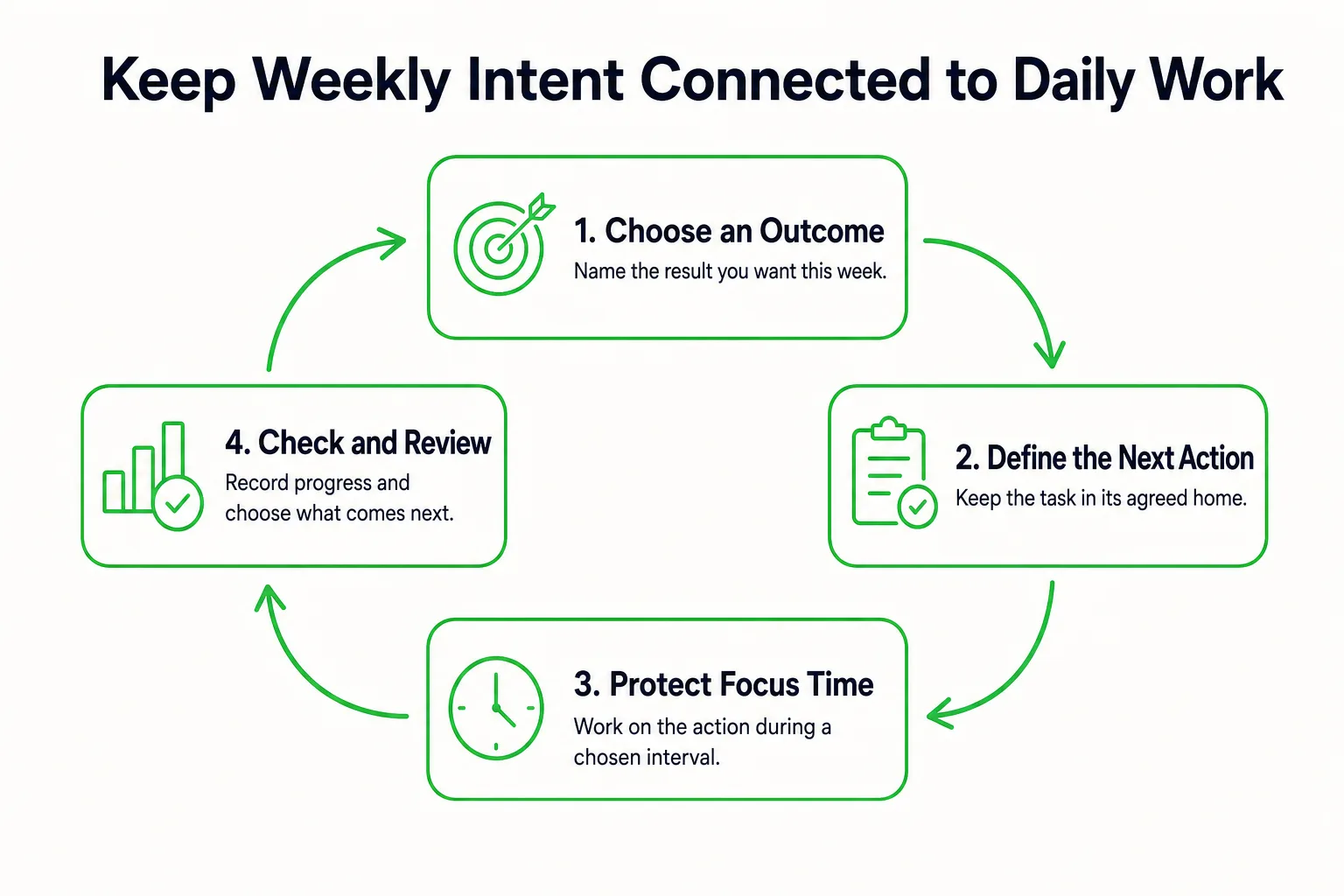
A useful commitment names a behavior, fits an ordinary workday, and includes a way to resume after missed days. Connect the weekly outcome to the work you will actually do, but keep each item in one clear home.
14. Give Each Commitment One Home
A goal describes an outcome, a task finishes an action, a habit repeats a behavior, and a focus session is time spent doing the work. For example, a goal might be to finish a client proposal. Its next actions could be confirming the scope and drafting the recommendation. Assign today’s drafting task a focus block, then use a separate end-of-day habit to leave tomorrow’s next action ready.
Copy this template for your week:
- Weekly outcome:
- Linked project or task location:
- Next action:
- Task priority:
- Focus session:
- Recurring habit:
- Weekly review note:
For team work, keep the shared assignment in the team’s agreed system. In your personal planner, refer to that assignment and record only the next action you need to take. That gives you a useful personal view without creating a second version of the team’s project status.
15. Separate Daily Checks From Weekly Decisions
Each day, choose priorities, confirm the next action, start a work interval, check off completed work, and leave a restart note. The note can be as short as “Next: add the pricing paragraph to the proposal.”
Once a week, review outcomes, remove stale commitments, check upcoming deadlines, and choose the next week’s focus. When the week is crowded, use the 80/20 productivity analyzer to compare activities before choosing what deserves protected time. If you miss a day, resume with the next useful action; if the same obstacle keeps appearing, adjust the schedule.
Check Whether Your Tools Help After 30 Days
A 30-day check can show whether your setup is helping, but it cannot by itself prove that the software caused a change. Compare similar work periods and note what else changed along the way.
16. Record a Baseline You Can Repeat
During your first workweek, record completion rate, focus minutes spent on intended work, missed deadlines and their reasons, and unnecessary tool switches in a consistent sample interval. Repeat the same checks during the final workweek of the 30-day trial. Note unusual deadlines, absences, or project changes beside the results.
Calculate completion rate as completed planned tasks divided by planned tasks, multiplied by 100. Freeze the planned list at the start of each day and record incoming work separately. Keep task sizes reasonably comparable: splitting one task into several smaller entries can make the rate look better without showing that more meaningful work was completed.
Count a tool switch as unnecessary when you are searching for a task, copying its status, or checking several inboxes for the same request. A productive handoff between the right places is different. Use the same definition and sample interval in both workweeks.
17. Keep, Adjust, or Remove Each Tool
At the end of the trial, check whether you can:
- Find work quickly.
- Finish the tasks you intended to do.
- Meet commitments and understand missed deadlines.
- Maintain the setup without extra administrative effort.
Keep a tool that helps you do useful work. Adjust unclear notifications or ownership when those are getting in the way. Remove a duplicate task list if it creates extra upkeep without giving you a needed view. Record why you kept or removed a tool in the decision journal, so the next appealing app does not restart the same debate.
Set Up Your Office Productivity System With Loggd
Loggd brings habits, tasks, goals, and focus time into one app on iPhone, Android, and the web. You can use it for your personal planning while keeping shared project records in the system your team already uses.
18. Set Up the Work You Want to Connect
For a client proposal, set up the pieces in this order:
- Create a goal for finishing the client proposal.
- Add concrete tasks, such as confirming the scope and drafting the recommendation. Set priorities and relevant tags.
- Connect those tasks to the proposal goal.
- Add a focus session connected to that goal for the drafting work.
- Schedule a recurring habit to plan the next action before you finish work.
During the day, use the task list to choose what comes next, the focus timer to work on a selected task, and the habit schedule as a reminder for your end-of-day routine. Use the daily check-in to mark progress and reflect on the day. Keep the shared assignment and project status in your team’s agreed system; use Loggd for the personal actions you need to carry out.
19. Make Progress Visible Without Extra Scoring
Once a week, review the chosen goal, the remaining tasks, and the work you completed. Decide what action should come next and update your plan. This is a review you perform, not an automated report.
Daily checkoffs fill a grid of your last 365 days, so you can see the year at a glance. Finished work earns points, supports progress through 100 levels, and contributes to streaks, badges, and a leaderboard. Treat these as cues for completed work and repeatable behaviors, not as measures of work quality.
Loggd is free on iPhone, Android, and the web, with no credit card needed. For a separate planning exercise, browse our free browser tools, which need no signup and save privately on your device.
Questions About Office Productivity Tools
What are the four types of productivity tools?
A useful way to group them is by the work they support: creating and storing information, managing tasks and projects, communicating and collaborating, and managing time and focus. Some tools cover more than one type, so choose based on the job each one needs to do in your workflow.
What are five common office productivity tools?
Five common types are an office suite for documents and spreadsheets, a task manager for next actions, a project board for shared work, a communication app for messages and meetings, and a note-taking tool for meeting records and reference material. You may already have some through work; add another only when it fills a clear gap.
How are office productivity tools different from regular office software?
The terms overlap. Regular office software often means tools for creating documents, spreadsheets, presentations, and email, while office productivity tools can also include task management, project management, time tracking, focus timers, and automation. The useful distinction is what the tool helps you do: produce a file, coordinate work, or decide what happens next.
Sources
- eTools : Computer Workstations
- For whom and under what circumstances does email message batching work?
- Study finds ChatGPT boosts worker productivity for some writing tasks
- United States Commuting At A Glance: American Community Survey 1-Year Estimates