To choose a focus list app such as Focus To-Do, test one real task from entry through a timed work session. Then check device access, privacy, and any upgrade requirements before moving the rest of your list.
The point is to see whether the app helps you organize tasks, begin focused work, and find a useful record afterward. Use the device you normally work on, and have a second device ready if switching between devices matters to you. Keep the test small so you can follow the task from start to finish without moving your whole backlog.
By the end, decide whether to keep testing Focus To-Do, use a simpler setup, or choose another app. Start with one piece of work you need to do soon.
Build a Small Task List You Can Actually Test
Enter one real task, such as preparing a project update. Give it a clear finish condition: draft the update and send it for review. That makes it easier to tell whether the task list helps you move from intention to completed work.

Look at the task details and test the controls available in your version. Check whether you can add a due date, set a reminder, create subtasks, add notes, or make the task recurring. Use subtasks such as gathering figures, drafting the update, and checking the draft. Choose a recurring schedule only if the work genuinely repeats.
A due date marks the deadline for a task. A reminder should prompt you at the time you choose. If you set one, check that it arrives with your usual notification settings, including any device-level notification controls.
Ask whether each detail makes your next action clearer. The best planning tool supports the decisions you make most often with the fewest extra steps. If adding dates, notes, and subtasks makes the task harder to understand, keep only the details that help you act.
Repeated task switching can add up to lost time and more errors. Once the task is ready, choose one task to work on next instead of moving between several unfinished items. If your test list is already too large, use the 1-3-5 rule to choose a manageable amount of work for the day.
Follow One Task Through a Timed Session
-
Open the task you created and choose its first unfinished subtask. For the project update, that might be gathering the figures. Keep the session tied to one piece of work so you can judge whether the task-to-timer workflow is useful.
-
Find the timer control available in your version. Before starting, check whether the session is associated with the project-update task you intend to work on. If you cannot tell, pause here and find out how the app records a session before relying on its history.
-
Choose a 25-minute work interval for this trial if that setting is available. Treat it as a practical starting point for testing, not as a required duration. Start the session and work only on the selected subtask.
-
If something interrupts you, use the available pause or stop control. When you return, check how the interruption was recorded. Notice whether the timer shows elapsed time, a completed interval, or another measure; those are not automatically the same as planned time or completed work.
-
When you finish the subtask, mark it complete if that control is available. Check whether the parent task remains open while the other subtasks are unfinished. Then continue with the next subtask only if you have time and focus for it.
-
Open the available history or statistics view. Look for the task name, the completed session, and its recorded duration. Compare that record with what you planned to do and what you actually finished. A timer total can describe time, but it does not tell you by itself how good the work was.
-
Check any available daily and weekly views. If you want to review a year, confirm the date range and whether older records are accessible before counting on them. Use the record to ask what to do next. Tracking can help you see what works and adjust what does not, so focus on a useful adjustment rather than a large total.
If you need a clearer stopping point for the task itself, see timeboxing for a way to define the work boundary.
 Loggd · by the makers of this blog
Track your habits, tasks and goals in one free app.
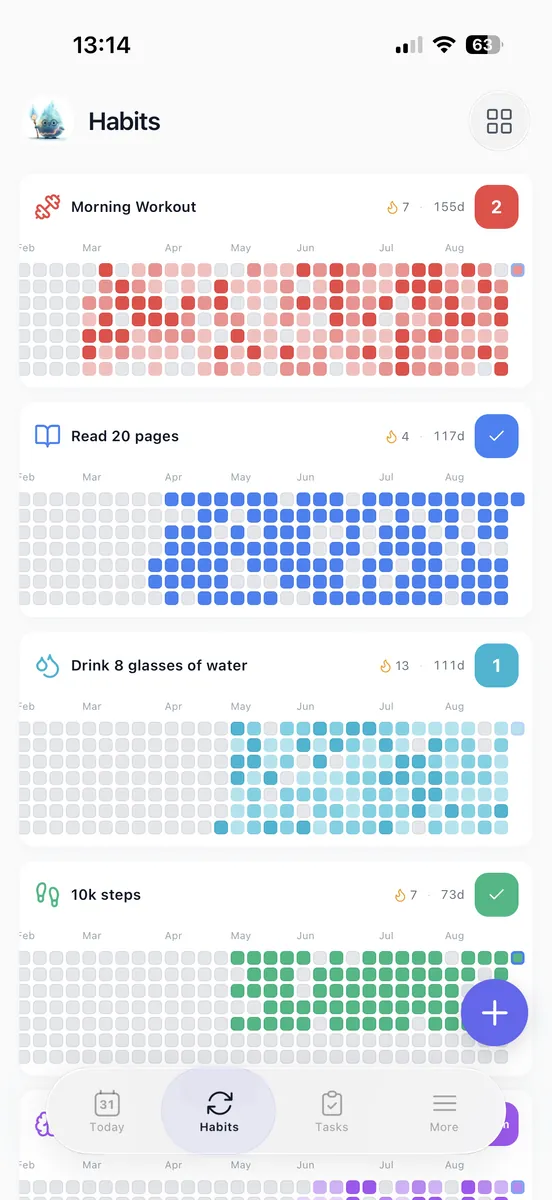
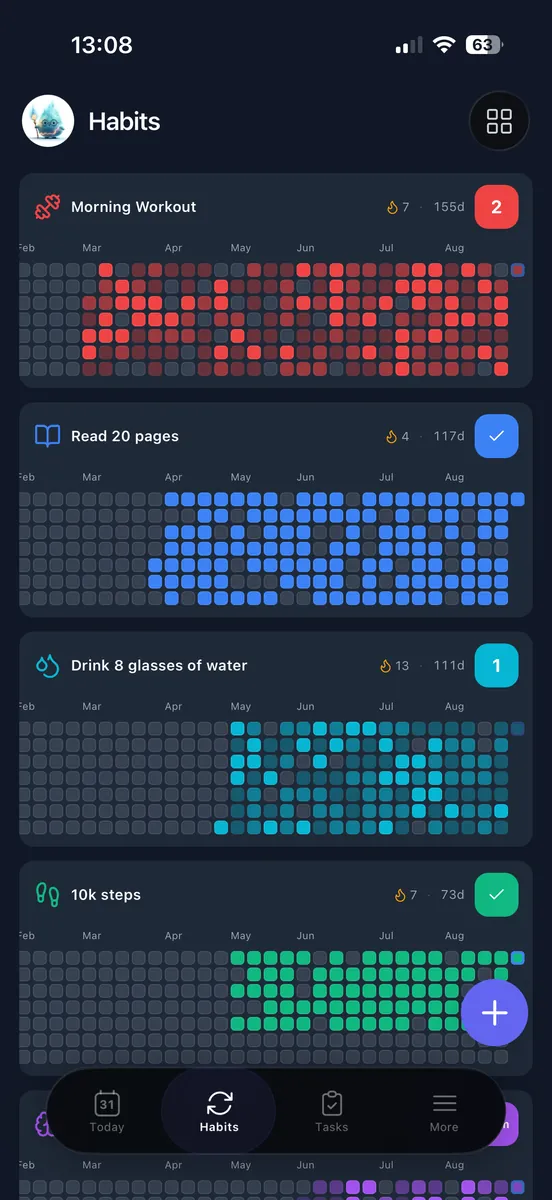
Every day you check off fills in a grid of your last 365 days, so you can see if you are getting better.




Free plan with no time limit. No credit card.


Check Login, Browser Access, and Device Switching
Start with the devices you actually use. Check Android, iPhone, iPad, Apple Watch, Mac, Windows, and Chrome as possible access routes, not as a confirmed support list. What matters is whether Focus To-Do works on the devices you need and whether they share the information you expect.

For a Focus To-Do download, verify the publisher and use installation links from the product’s own site or the device’s official store. Then check three things separately: whether your device has an installable app, whether Focus To-Do online offers browser access, and whether a Focus To-Do extension supports your browser. A browser extension and a full web app are different routes, so test the one you plan to use.
If you try browser access or a Chrome extension, see whether it works on its own, requires an installation elsewhere, or asks you to create or use an account. For Focus To-Do login, note which sign-in method you chose. On your second device, use the same account identity. Matching display names alone do not prove that two sessions belong to the same account.
Run a small cross-device sync test before adding real work:
- Create a disposable task on your first device.
- Check whether it appears on your second device.
- Change its due date on the second device, then return to the first and see what appears there.
- Separately check whether the timed session you completed earlier is available. Compare task completion, subtasks, notes, and session history rather than assuming they all sync together.
If you need offline access, repeat the disposable-task test while disconnected. Reconnect and inspect what appears before relying on the app for real work.
Decide What Data You Are Comfortable Adding
Treat safety as four separate checks: account security, synchronization, permissions, and privacy terms. A working login or successful sync does not answer all four.
For account security, look for available sign-in protection, account recovery, and session controls. If you use a password, make it unique. Check what information leaves your device when synchronization is enabled, and where the app explains how account or storage data is handled. Syncing successfully tells you that information moved between devices; it does not, by itself, tell you how that information is protected.
Review the permissions requested by the installed app or browser extension. Enable notifications if you are testing reminders. Consider other requests in relation to the action you want to perform, and avoid enabling access you do not need for that task.
Read the current privacy policy before adding personal information. Look for what task content and usage information are collected, how they are used or shared, and how to request deletion. Keep passwords, financial account details, medical records, and confidential work information out of the trial. Follow your workplace’s rules before entering work data.
Start with a neutral task title. Add only the level of detail you are comfortable storing under the terms you reviewed.
Check What an Upgrade Would Change for You
To answer “Is Focus To-Do free?” check what your current installation lets you use without payment. Note whether anything you need is marked as a trial, and test the workflow with the access currently available to you.
Before considering Focus To-Do Premium, inspect the current Premium screen or account information on the exact device and account you plan to use. Compare your requirements with what it explicitly says is included: task entry, recurring work, reminders, session history, reporting, and cross-device use. If a feature is important, confirm its availability rather than inferring it from a label or from what you can see on another device.
Check the billing terms, renewal, and cancellation details before authorizing a payment. Also confirm whether an entitlement applies across the platforms you intend to use. Do not assume a purchase on one platform covers another.
Stay with the access you already have if it handles the task and focus workflow you tested. Consider an upgrade only if a necessary blocked feature is explicitly included and the terms fit. If you still cannot confirm that the capability you need will work, choose another setup instead. Ask whether that feature replaces a tool you already pay for or adds another recurring expense.
Compare Focus To-Do With Your Other Options
Use the same project-update task to compare each setup. Check whether you can gather the figures, draft the update, and check it before sending it for review. That makes the trade-offs easier to see than comparing feature lists.
| Option | Need to test | Acceptance check | Trade-off to inspect |
|---|---|---|---|
| Focus To-Do | Starting a session from the intended task and finding its history afterward | You can select the task, complete a timed session, and locate a useful record in your trial | Check whether its task organization also handles the rest of your real workload |
| Todoist | Managing the broader task workflow, such as organizing projects, setting recurring work, or handing work to someone else | The project-update task and its next actions fit the way you need to organize work | Check separately how timed work would be associated with the task, and whether that adds steps or another tool |
| Your existing task list plus a separate timer | Using two tools for the same task | You can start a session and reliably record which task it served | You may need to reconcile task progress and timer records manually |
Choose Focus To-Do if the task-to-session workflow works well and its task controls fit your workload. Choose Todoist if it better supports the broader task workflow you tested, while checking how you will track timed work. Keep your existing list and pair it with a timer if that meets your needs with fewer changes. To try a separate browser timer alongside your list, use the free ADHD focus timer.
Repeat the comparison with the same project-update task before deciding. If fixed intervals interrupt your work, the Flowtime technique offers another timing approach to consider.
Move Only the Work That Passed Your Test
Keep the app only if you can identify the next task, start work without awkward extra steps, use the devices you need together, and accept the data and upgrade terms. A weak result on one of those checks is a reason to adjust the setup or test another option before moving more work.
Start with the active tasks for the coming week. Leave completed history and distant ideas where they are until the new setup has handled ordinary work. If a requirement failed, resolve it first: change the setup, test another option, or keep your existing list. If the link between daily tasks and longer-term aims will decide your choice, see the goal planner app guide for help evaluating that connection.
If you try this workflow in Loggd, link a goal to the related tasks and focus sessions so the work stays together.
Enter tomorrow’s first task and give it a clear finish condition.