
The best productivity tools for time management solve the problem you actually have: forgotten tasks, crowded schedules, distractions, or hours you cannot account for. Start with one tool for that problem, then add another only when it has a different job.
The six picks here are tool categories, not a ranking of brands. Each has a concrete starting option and a reason it may fit: a task manager for actions that slip, a calendar for competing commitments, time tracking for unclear estimates, a focus tool for hard-to-start sessions, a shared board for handoffs, and an integration tool for repeated transfers.
To choose, match the tool to the failure, check whether its free version covers your actual week, and test the smallest useful setup during an ordinary week. You do not need to install all six. The right starting point is the one that helps with the problem you keep running into.
Start With the Failure You Want to Fix
Think of one recent commitment you missed or struggled to finish. Where did it break: remembering it, finding room for it, getting started, or understanding how long it would take? That answer gives you a practical place to begin.
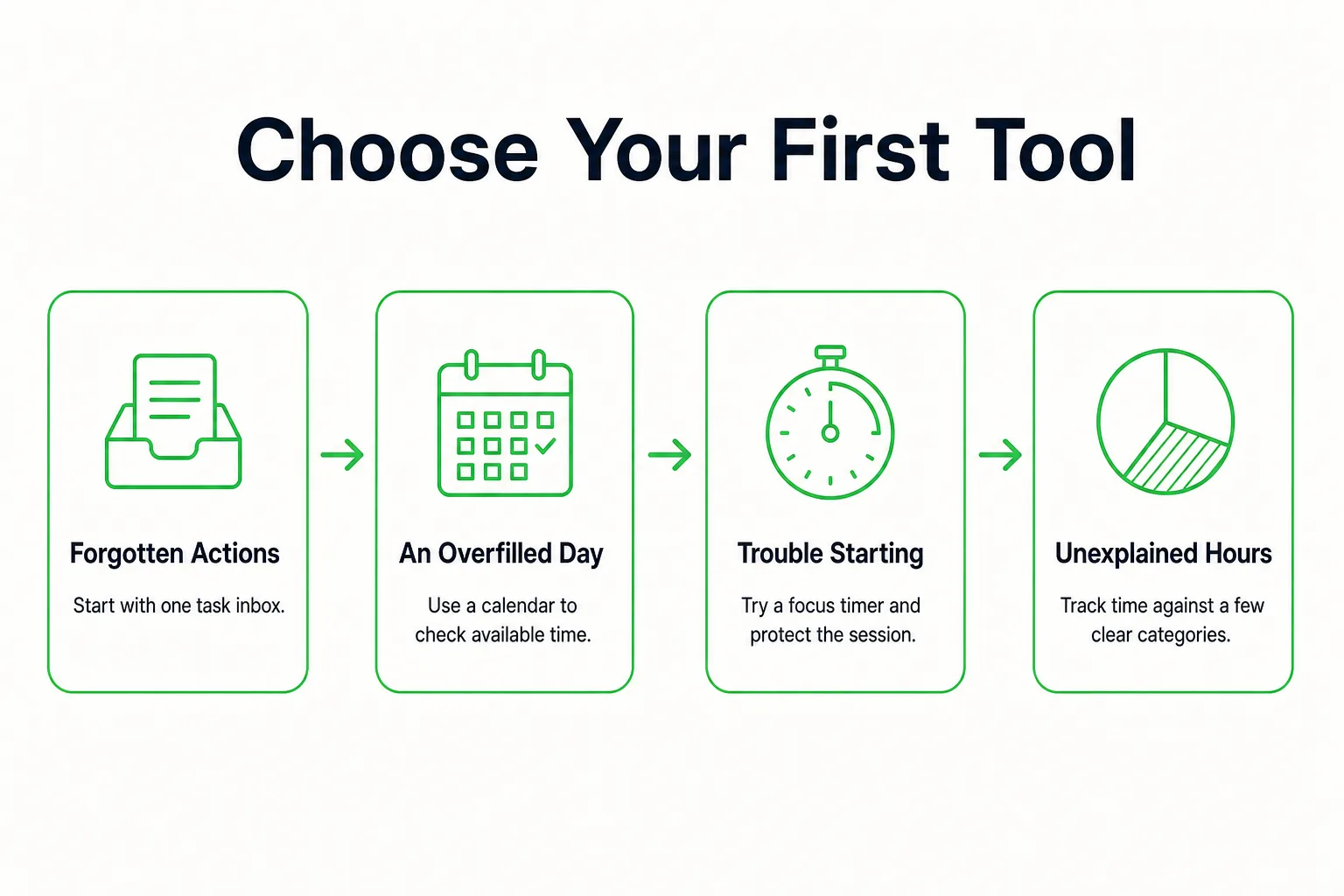
- If you forgot an action, try a task manager.
- If your day was already full, try a calendar.
- If interruptions or delayed starts got in the way, try a focus tool.
- If hours went unexplained or estimates proved unreliable, try time tracking.
Shared handoffs and repetitive administrative work point to different needs: a project board can make ownership visible, while an integration tool may help with a transfer you repeat. Add either only when that problem is part of your week.
A small decision rule helps more than a vague goal to “get organized.” For example: “When I accept a task, I put its next action in one inbox.” The rule tells you what to do at the moment the problem occurs.
If you keep abandoning to-do lists, pause before switching apps. Is the obstacle capturing tasks, choosing a next action, or finding time to do it? Each calls for a different fix. Begin with the recurring failure that costs you the most, rather than installing a tool for every category.
When Commitments Slip or the Day Looks Full
Actions and appointments are different. An action is something you need to do; an appointment is a commitment to a time. A task list can hold the first without turning every action into an artificial calendar event.
1. A Task Manager for Forgotten Actions
Use one task inbox to capture actions, then choose a short list for the day. The inbox is there to stop tasks disappearing; the daily selection helps you decide what to work on without treating the whole backlog as today’s plan.
Make task names specific enough to start. If you have “presentation” on your list, change it to “draft the opening slide.” Stanford describes a to-do-list task as something that can be completed in one sitting, ideally within 30 minutes. Use that as a helpful prompt to break a large project into actions you can actually begin, not as a limit on every kind of work.
Test the list where you will use it. Can you capture an action quickly on your phone and retrieve it on your computer? Check whether you need reminders, recurring tasks, priorities, or another feature before choosing a tool that offers it. Skip features that do not solve a problem in your week. Use the brain dump tool to collect loose tasks before moving the actionable ones into your chosen list.
2. A Calendar for Commitments and Capacity
Start with the calendar you already use if it can hold your fixed commitments and planned work. A calendar makes competing demands for the same time visible, so you can see when an attractive plan does not fit.
Keep the deadline separate from the work session. If a report is due Friday, put the deadline on Friday, then reserve an earlier slot to draft it. The deadline marks when it must be done; the work period shows when you intend to make progress.
Leave some room around planned commitments. The University of Georgia recommends scheduling about three-fourths of the day, leaving space for planning, thinking, and adjustment. Treat that as guidance to avoid filling every available hour, not as a requirement for every schedule. Sketch tomorrow's available work periods with the time blocking planner before adding them to your calendar.
Choose the task list when actions disappear; choose the calendar when known actions have nowhere realistic to fit.
When Hours Disappear or Starting Is Hard
Measuring work and protecting a work session solve different problems. A tracker helps you understand where time went; a focus tool helps you set a boundary around the work in front of you. Choose between them based on what is getting in your way.

3. A Time Tracker for Unclear Estimates
Time tracking belongs in your setup when you cannot tell how long work takes or where your available time goes. A record lets you compare the time you planned with the time recorded, then check whether the work you meant to prioritize got a place in your week.
Start with a few useful categories, such as client work, administration, study, and breaks. Use only categories that fit your actual week. A detailed log can take effort to maintain, so begin with enough detail to answer a real question, not every question you might someday have. Use the time audit tool to examine where your available time is going before deciding how detailed your tracking needs to be.
Manual tracking means starting and stopping a timer yourself, then correcting entries you forgot to record. Automatic tracking may reduce those actions, but you still need to review how activity is classified and check what data is collected and retained. Pick the method whose upkeep and data handling you are comfortable with.
If you are a freelancer tracking billable hours, check whether you can assign time to the right project, correct entries, export records, and provide the format your client requires. Do this before relying on the tool for billing.
4. A Focus Tool for Protected Work Sessions
A timer can help when starting or stopping is the hard part. Choose one next action, silence avoidable notifications, and close distracting tabs before beginning. Keep necessary calls and access available, so the session does not prevent you from responding to something you need to handle.
The University of Cincinnati describes the Pomodoro Technique as 25 minutes of work followed by a five-minute break. Treat that as a starting session format, then adjust the length if it does not suit the task. Run your first work interval with the Pomodoro timer, using one clearly defined task.
A timer marks a work interval. Focus mode limits interruptions from selected notifications or apps, while distraction blocking restricts access to chosen sites or apps. Those are different jobs, and their behavior depends on the tool. Test which interruptions each option actually addresses, and check that the settings leave necessary calls or work access available.
When Your Next Action Depends on Someone Else
Some work depends on another person taking an action, supplying information, or approving a result. Add a shared tool only when that handoff is hard to manage in a private task list.
5. A Shared Project Board for Handoffs
A project management tool belongs when work has owners, dependencies, and handoffs that your personal list cannot communicate. For a client deliverable, record the next action, its owner, its due date, and what approval is needed before work can continue. That gives collaborators a shared view of what is moving and what is waiting.
Keep the board easy to read with a small set of statuses, such as ready, in progress, and waiting. Before choosing a platform, check that the actual collaborators can access it and update the work. A board needs upkeep: people have to maintain statuses and agree on where the current task lives. If you work alone and have no handoffs, a task list may be enough.
If your handoff also involves shared files or live editing, use the guide to cloud-based collaboration tools to choose that separate part of the setup.
6. An Integration Tool for Repeated Transfers
An integration or automation tool belongs only when you repeatedly transfer the same information. For example, you might want an accepted request to become a task. First confirm that the repeated transfer is a real source of friction and that the information can move without judgment or extra decisions.
Test one trigger and one destination. Check the task or record that gets created, then inspect for duplicates before expanding the rule. Verify which devices are supported, what permissions the connection requires, whether it sends a failure notification, and whether the connection is included in the version you intend to use.
Automation adds another connection to maintain. Keep the transfer manual when the volume is small or the information needs judgment. A short, visible step can be easier to check than a rule whose output you have to monitor.
Check Whether the Free Version Covers Your Week
The useful question is whether a free version can handle your normal workload on the devices you actually use. Check the tasks you need to do, not just the features listed on a product page.
| Tool Category | What Must Work Without Payment | Check Before You Commit |
|---|---|---|
| Task manager | Keep the active list and any recurring tasks you rely on available | Test reminders, recurring tasks, priorities if needed, and access across your phone and computer |
| Calendar | Hold your commitments and planned work periods | Check the accounts and devices you use, and confirm that the events you need are available there |
| Time tracker | Record the work categories you need to compare | Check how much history is available, whether you can correct and export entries, and whether reports answer your question |
| Focus tool | Run the session controls you need and provide the blocking behavior you expect | Test session length, breaks, and any notification or site blocking on the devices where you work |
| Shared project board | Show the work, owners, and handoffs your collaborators need | Check limits on users, guests, active projects, and retained history against your actual workload |
| Integration tool | Connect the specific source and destination you plan to use | Check supported connections, run limits, required permissions, and how failures are shown |
Treat each row as something to verify. Free-plan limits vary, and a tool that works for a short personal list may not cover a team workflow or a detailed record-keeping need.
For a free starting route, try the calendar and task list you already use. Add a browser timer or time audit only when you find a clear gap. For a no-signup starting option, choose a relevant tool from Loggd's free browser tools; these save privately on your device.
Test storage and access on every device you need. A tool that saves on one device may not make the same information available on another, so check cross-device access directly rather than assuming it is included. Pay only after you identify a specific requirement the free version blocks, such as the report format you need for client billing.
Give Each Tool One Job
A simple setup gives each tool one job. The task list owns actions, the calendar owns appointments and planned work periods, and the timer records or bounds the session you are doing now. One app can cover more than one role, but each piece of information still needs a single home.
Say you need to draft a proposal. Capture “draft proposal” in the task list, reserve a work period on the calendar, then start the timer when you begin drafting. Keep the task details and completion status in the list. The calendar entry can refer to the task without becoming a second copy you have to maintain.
Assign alerts by purpose. Let the calendar remind you about a scheduled commitment, the task list alert you about an actionable deadline, and the timer signal the end of a work session. For recurring work, choose one place to maintain the recurrence, then check that any connected tools do not create duplicate entries.
When plans change, update the source that owns the information: move the calendar slot when the session moves, edit the task when the action changes, and correct the time record only if it does not reflect the work you did. Complete this flow manually during your test week before connecting tools or adding automation.
Test the Setup for Seven Days
Use an ordinary week to see whether the setup helps with the specific problem you chose. You do not need another tracking app. Keep a brief note each day with four items: original problem today, tool action used, maintenance minutes, and one change to try.
- Day one: Choose one failure to address and select the smallest setup that fits it. Spend 15 minutes configuring one inbox, necessary alerts, and a few task or time categories. Write down one recent example of the original problem so you can compare it with what happens this week.
- Day two: Use the setup for real commitments. Note any missed items, alerts you did not need, and the minutes you spent maintaining the tool. Add your four-item daily observation.
- Day three: Check whether planned work fits around fixed commitments. Note which work periods moved and why. Record your daily observation, including any adjustment you want to try.
- Day four: Test the setup on the other device or in the other location where you need it. Try capturing and retrieving an item, and check any offline access you rely on. Record what worked, what failed, and your daily observation.
- Day five: Look at the evidence related to your chosen problem. Depending on your setup, that could be uncaptured tasks, moved work periods, interrupted sessions, or planned time compared with recorded time. Add the four items to your note.
- Day six: Remove one unnecessary field, alert, view, or connection. Note whether the setup takes less effort to maintain, then record your daily observation.
- Day seven: Compare your notes with the original problem. Review what happened during the week and review your schedule daily and weekly, using reminders for deadlines that need them. Decide what to keep, change, combine, or remove.
Keep a tool when it addresses the chosen failure and its upkeep fits your day. Combine it with another only if a different problem remains. Replace it when required access, capture, or output repeatedly fails. Remove it when it duplicates another tool without helping you make a decision.
If travel, illness, or unusual deadlines shaped the week, repeat the test during a more ordinary one before expanding your setup. Your notes are evidence about how this arrangement worked in those conditions, not a guarantee about every week.
Save the Evidence You Will Need at Year-End
Keep a short monthly note with four useful signals: a recurring overrun, a commitment you repeatedly moved, a goal with no recent action, and one setup change worth keeping. These notes preserve context that a year-end chart may not show.
Use each signal to prompt a decision. Compare planned and recorded time for the same kind of task when work repeatedly runs long, then adjust the estimate. When commitments keep shifting, inspect the calendar and missed work periods to see whether the week is overloaded. If a goal has no recent action, check whether any tasks or sessions were connected to it; a missing record is a reason to investigate, not a complete account of the year. Restart the goal with a next action or retire it.
Before relying on reports and analytics at year-end, check how much history the tool retains and whether you can export the records. If a report lacks the context you need, save brief periodic notes instead. Recorded hours describe time logged, not the value of the work or what it meant to you.
At year-end, choose one concrete adjustment for each issue that persisted, such as allowing more time for proposals or reducing concurrent commitments. The records are useful when they help you make a specific choice about what to change.
Sources
- Keeping To-Do Lists
- Time Management: 10 Strategies for Better Time Management
- Time Management Strategies for UC's Online Students