Choose time tracker software by deciding what you need to record and what decision you want to make from it. Then test its tracking method, privacy controls, and reports against an ordinary day.
A time tracking app might record selected sessions, capture activity on a device, or combine both approaches. The right fit depends on what you want to understand: making room for a habit, planning tasks, seeing how time reaches professional goals, or reviewing your year. Start with a small trial instead of trying to log everything. Choose a few categories, record a few ordinary days, and set aside a brief daily check to correct missed or overlapping entries.
Decide What Your Time Log Should Answer
Before choosing software, write one question that a time log should help you answer. For example:
- Habits: Where can I make room for a walk?
- Tasks: Which recurring task needs more time?
- Professional goals: How much time reaches the work tied to my next milestone?
- Year-end reflection: Which activities stayed part of my routine across the year?
Choose the question closest to a decision you expect to make. Then name the activity you need to record and what you will do with the information. If you want to make room for a walk, record the walk and the activity that tends to push it aside. Use those entries to decide whether to change the walk’s timing or protect a different part of your schedule.
Choose a tool that supports the decisions you make regularly with the least extra work. A simple session log may answer the walk question; detailed monitoring may add effort without helping you decide what to change. If your question depends on a milestone, use these ways to track goal progress to decide what finished work should accompany your time entries.
Choose Automatic, Manual, or Hybrid Tracking
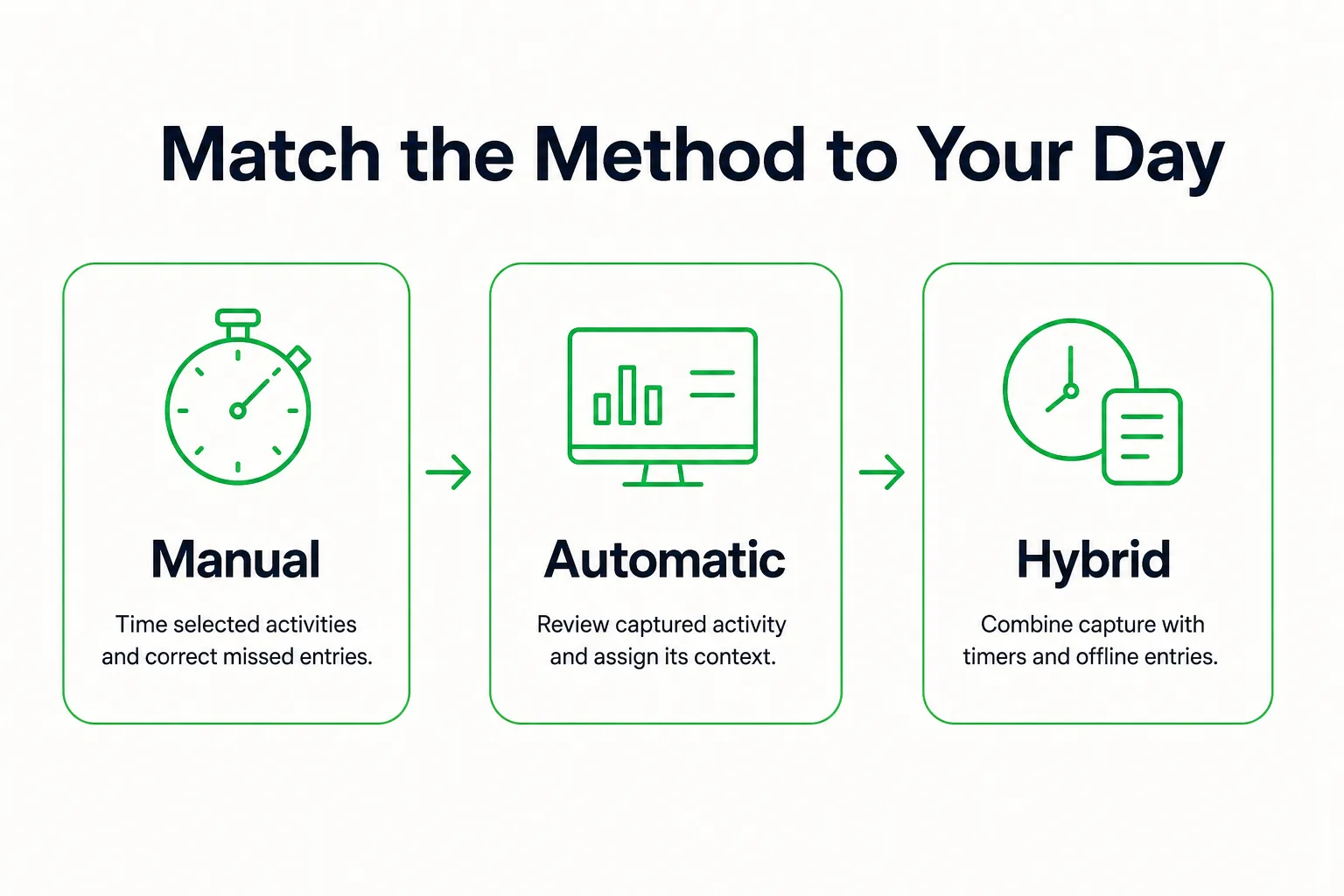
Manual time tracking means starting and stopping a task timer or entering a session afterward. Automatic time tracking captures supported device activity for you to review and assign. A hybrid method combines automatic capture for supported activity with manual timers or entries for context and work away from devices.
| Method | When to choose it | Work required from you | What to check |
|---|---|---|---|
| Manual | You want to record selected activities and can use task changes as timer cues. | Start and stop timers, or enter sessions afterward. Correct forgotten starts and stops. | How easily you can edit sessions and enter work you did away from a device. |
| Automatic | Reconstructing device-based work is your main need. | Review and assign the captured activity. Add context, since app or website activity alone may not explain what you were doing. | Which devices and activity types it supports, and how to add offline activities. |
| Hybrid | Your work regularly moves between devices and offline activities. | Review captured activity and add manual entries for the rest. | Whether entries overlap and how to correct them. |
Use manual tracking when a task change is a reliable cue to start or stop a timer. If you tend to forget, plan to correct the session during your daily review. Automatic tracking may help reconstruct device-based work, but you still need to add context and record offline activities separately when they matter to your question. With a hybrid setup, check that a manual entry does not duplicate an automatically captured session.
To keep tracking from interrupting your day, use broad categories, set available reminders for natural task changes, and make corrections during a short end-of-day review.
 Loggd · by the makers of this blog
Track your habits, tasks and goals in one free app.
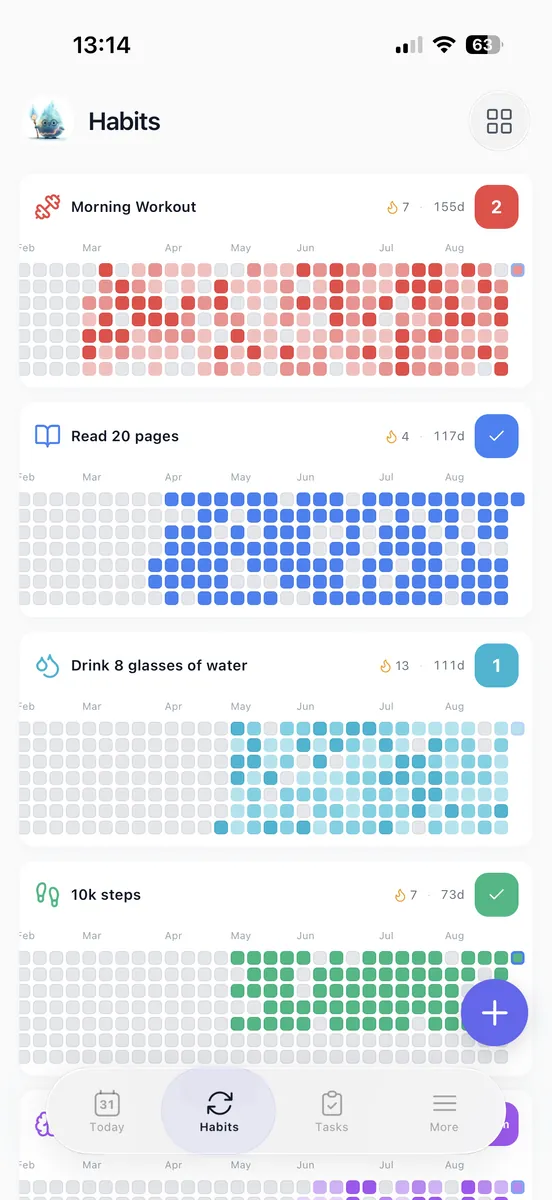
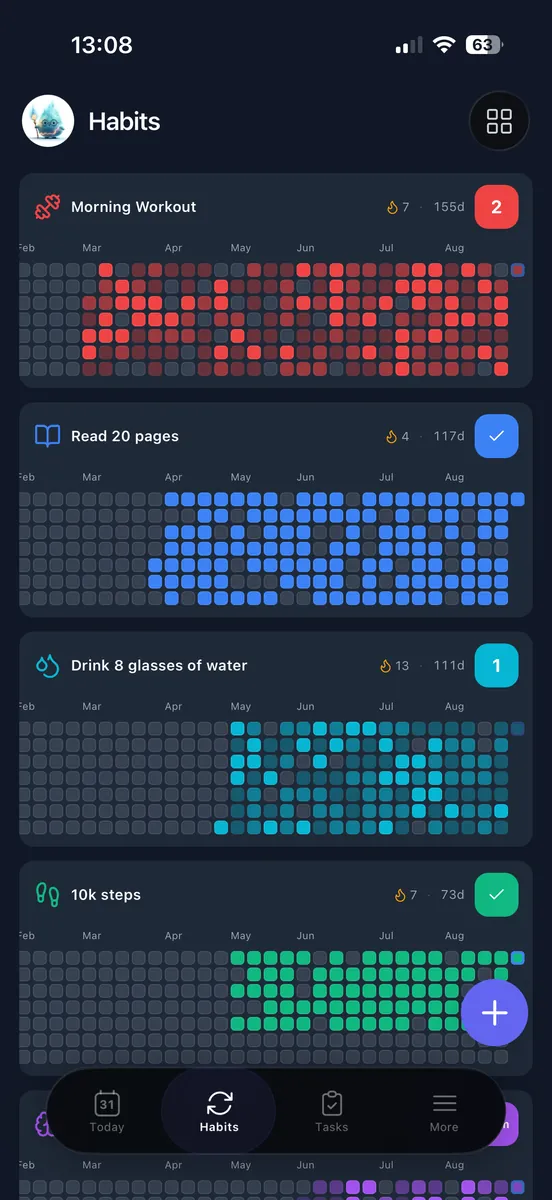
Every day you check off fills in a grid of your last 365 days, so you can see if you are getting better.




Free plan with no time limit. No credit card.


Check Privacy Before Recording Your Day
Before you connect accounts or enable monitoring, check what the time tracker can collect and who can see it. Complete this checklist first:
- Screenshots: Does the tool capture screenshots? When are they taken, who can view them, and can you turn capture off?
- Activity details: Does it record app names, website addresses, window titles, or other detailed activity? Inspect a sample record before tracking sensitive work.
- Location: Does it request location access? Decide whether location is needed for the question you chose, and leave it off if it is not.
- Storage and access: Find out where records are stored and who can access them. Check how long they remain, and how to export and delete them. Confirm whether deleting an entry is different from deleting your account.
- Pausing and exclusions: Find pause controls, exclusions, and working-hour settings, if offered. Test pausing, resuming, and deleting a sample entry before recording a full day.
- Workplace access: If you use a workplace-managed account, confirm administrator visibility and workplace policy before recording personal activities or connecting a personal calendar.
Enable only the permissions needed to answer your chosen question. For example, a manual session log for a walk may not need access to your location or app activity. Do one test entry, then check exactly what appears in the record and report.
Test the Features Your Routine Depends On
Test one complete path before relying on a tool: create an entry, assign it to an activity, correct its duration, and find it in a time report. This shows whether the everyday workflow works for you, not just whether the dashboard looks useful.
For project time tracking, check that you can assign entries to the right task and project, edit them, and group reports by the categories you need. If you track billable hours, check billable and nonbillable labels, rounding rules, and exports. If you need a work record for submission, follow the timesheet setup steps to check what each entry needs.
Test calendar integration rather than assuming an event records time worked. Check whether an event becomes a plan, a suggested entry, or recorded time. For task management integration, see whether task names and project assignments carry across, and what happens when you later change them.
Try the desktop time tracker, mobile time tracker, or online time tracker on the devices you actually use. If you work offline, test entering that time later and syncing it. Check whether reminders can be adjusted and whether recurring activity labels or habit schedules fit your routine. Before relying on the tool for year-end reflection, verify how far back its reports go and whether you can export your records.
Start with a free time tracker if it supports the recording, editing, privacy, and reporting workflow you need. Consider another option if a test shows that a required step is missing. A timer can help you record a session, but check its reports and exports before using it as timesheet software.
Set Up Categories You Can Keep Using
Use a category for the main activity. Add optional time tracking tags for context that applies across different activities, such as a project or goal. Start with this template, then keep only the fields that will help you make a decision:
Categories
- Focused Work
- Meetings and Messages
- Personal Tasks
- Health and Movement
- Rest and Leisure
Optional tags
- Project: __________
- Goal: __________
- Planned or Unplanned: __________
For example, record a proposal draft under Focused Work with its project tag. Put grocery pickup under Personal Tasks and a walk under Health and Movement. Leave a tag field unused when it will not support a review decision.
For a recurring activity, these habit tracker examples can help you choose what counts as completing it. Completing a habit and recording its duration answer different questions. Choose the fields that fit your purpose, such as whether you took a walk or how many minutes it lasted.
If a session includes more than one activity, split the entry when the difference could change a decision. Otherwise, use its main activity. When activities happen at the same time, record the elapsed time once in your daily total, not once for each activity.
Keep category names stable during your trial so similar entries stay together. If two categories repeatedly lead to the same decision, merge them. You can add detail later if a specific review question calls for it.
Run a Small Trial and Change One Habit
-
Choose one question. Decide what you want the log to help you change, such as making room for a walk or giving a recurring task enough time. Keep the trial to a few activities tied to that question.
-
Record planned time for selected activities. Try the same activities over five workdays, while leaving the rest of your day as usual. Put your intended sessions in the time blocking planner so you have a clear plan to compare with your recorded time. Include work away from a screen when it matters to your question.
-
Capture actual sessions. Use a timer, automatic capture, or a mix that fits your routine. Record the activities you chose, and mark reconstructed entries as estimates. You do not need to account for every minute.
-
Correct the log at the end of each day. Fix forgotten starts or stops, check for overlapping entries, and add a brief note about anything that affected the plan.
-
Review several ordinary days and choose one change. Compare planned and actual time by activity, then check your notes for context. If a clear stop point would help you begin the next activity, use the Pomodoro timer for a bounded work session.
Say you plan 45 minutes for drafting, 30 minutes for messages, and 20 minutes for a walk. That is 95 minutes planned. Your log shows 60 minutes drafting, 20 minutes on messages, and 10 minutes walking, for 90 minutes recorded.
Drafting took 15 minutes more than planned. Messages took 10 minutes less, and the walk took 10 minutes less. The combined total is only 5 minutes under plan, which hides where the differences occurred.
Add a note that the walk started late after drafting ran long. Check whether that sequence recurs across the five workdays before choosing a change. If it does, try putting the walk before opening the draft and reserving 60 minutes for the next comparable drafting session. Compare that next similar day using the same categories.
Keep an adjustment when it supports the activity you intended and fits the day. Change the setup if the same obstacle remains.
Review Days, Weeks, and Years Differently
| Review period | What to inspect | A decision to make | A misleading shortcut |
|---|---|---|---|
| Day | Missing entries, overlapping sessions, planned versus actual time, and one context note | Correct the log or adjust tomorrow’s plan | Rating the whole day by how busy it felt |
| Week | Category totals, recurring overruns, and time reaching priority activities | Choose one scheduling or habit adjustment | Treating a single high total as proof of progress |
| Year | Broad patterns across periods with reasonably consistent records and category definitions | Decide what routines to keep, change, or make room for | Comparing totals without noting gaps or changed routines |
For a daily review, use the log to make one correction or adjustment for tomorrow rather than judging the entire day. App activity does not measure work quality, and billable time does not represent your whole workload. A dashboard that looks complete can still have missing entries.
For a weekly review, look for repeated patterns instead of reacting to one unusual day. For physical activity, federal guidance recommends recording your activities and reviewing them weekly. Pair the time with a relevant result, such as a draft completed, a milestone reached, or a planned walk taken. If you need a result measure beside your hours, use this guide to choose a useful KPI.
At year’s end, compare broad patterns only where records and category names stayed reasonably consistent. Note gaps and changes in your routine before comparing totals. Do not treat a short trial as a picture of the whole year, or logged hours, streaks, or activity levels as measures of performance or well-being.
Keep fields that changed a real decision during your trial; remove fields you repeatedly ignored. Set your next weekly review for the same day next week.